
How to connect your calendars to an AI assistant
Updated 12 September 2026
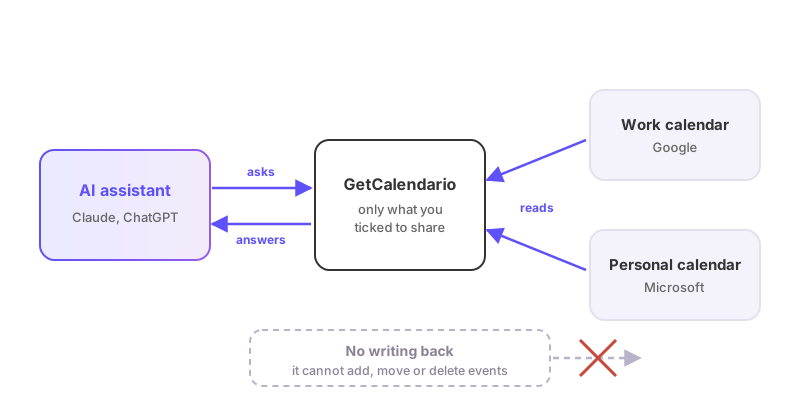
You can connect GetCalendario to an AI assistant and then just ask it things: what is on Thursday, when you are free next week, why a meeting has not turned up on your other calendar. The assistant reads your calendars through GetCalendario, so it sees everything you have connected — a work Google account and a personal Microsoft one together, in one answer — rather than one provider at a time.
It is read-only. An assistant connected this way can look at your calendars. It cannot create an event, change one, move one or delete one, and there is no setting that lets it — the connection has no way to write anything back at all.
What you need
- A Premium or Pro plan, or a trial. It is not part of the free tier or the Basic plan.
- Your calendars on our current connector. Almost everyone is. If you signed up a long time ago and have not yet moved your accounts across, you will be asked to do that first — it takes about two minutes, and the message you get will link you straight to it.
- An assistant that supports connectors. Claude does, on its paid plans. Anything else that speaks the same connector standard will work the same way.
You also have to be the account owner. If someone invited you to their account as a secondary, you use their calendars inside GetCalendario, but connecting an assistant is theirs to do.
Connecting it
In your assistant, add a new connector and give it this address:
https://getcalendario.com/api/mcp
The assistant will send you to GetCalendario to sign in, and then show you a page asking whether to allow it. Read that page rather than clicking through it — it is the only point where you decide what the assistant can see.
Check the address on that page. It tells you the name the application chose for itself and, underneath, the web address your information would actually go to. The name is not proof of anything: any application can call itself anything when it registers. The address is the part that cannot be faked. If you are connecting Claude, it should say claude.ai. If you see an address you do not recognise, stop there.
Then tick what you are happy for it to see:
- See your calendars and when you are free — the names of your calendars, and your free and busy times.
- Read the events on your calendars — the actual events: titles, times, locations.
- See your connections and why events did or did not sync — your connections, and what happened to a given event.
- See your connected accounts, plan and usage — which accounts are connected, what plan you are on, how much of it you are using.
Untick anything you would rather it could not see. Most people leave all four on; if you only want scheduling help and would rather it did not read event titles, leave the second one off.
Press Allow, and you are connected. You will get an email confirming it, listing exactly what you granted.
Things to try
Your day and week
- "What is on my calendar on Thursday?"
- "Do I have anything before 10am tomorrow?"
- "What does next week look like — am I busier than this week?"
- "Have I got any meetings that clash?"
Finding time
- "Find me an hour next week when I am free, between 9 and 5."
- "When could I fit in a 30-minute call on Tuesday or Wednesday?"
- "I need three hours of uninterrupted time before Friday. When?"
Free time is worked out across every calendar you have connected at once, so it will not offer you a slot that is free on your work calendar and booked on your personal one.
Finding something you half-remember
- "When am I next seeing the dentist?"
- "Find the meeting with 'budget' in the title."
- "What was that thing at the Barbican?"
Why something has not synced — this is the one people ask us about most, and the assistant can now answer it for you:
- "My team standup has not appeared on my personal calendar. Why not?"
- "Is anything paused?"
- "Show me what happened to the events on my work-to-personal connection."
It will tell you the actual reason: the connection is paused, a rule you set is dropping the event, the event is outside your plan's sync window, or the copy is there and you were looking in the wrong place.
Your setup
- "Which calendars do I have connected?"
- "Am I near any of my plan limits?"
- "Does anything need reconnecting?"
Putting it together — the useful part is combining these:
- "Am I free Thursday afternoon, and if so put together a reply accepting the meeting."
- "What have I got on next week, and which of it could I move?"
- "Summarise my week for my team update."
What it will not know
Anything outside your sync window. Every plan syncs a set number of days back and forward, and GetCalendario only looks at events inside that window. If you ask about something a year out and your plan does not reach that far, the assistant is not being difficult — that event has not been looked at. Ask it "what plan am I on and how far does it sync" and it will tell you the numbers.
Older history, when searching. Searching looks inside your sync window rather than through all the years of your calendar. "I cannot find it" means "not in that window", not "it never happened".
A calendar that needs reconnecting. If one of your accounts has stopped working, the assistant is told which calendar it could not read and why, and it will say so rather than quietly leaving those events out. If you get an answer that mentions a calendar it could not read, reconnect that account.
Disconnecting it
Go to Profile → Connected AI clients. You will see what is connected, what it can see, and when it last used the connection. Press Disconnect and it stops immediately — the assistant loses access straight away, not at the end of the day. You will get an email confirming that too.
Both emails matter. If one ever arrives and it was not you, disconnect whatever it names and change your password: an assistant connected to your account keeps its access until it is removed, so it outlives the browser session it was connected from.
If it will not connect
- "You need a Premium or Pro plan" — the plan you are on does not include this. Trials do.
- "Move your calendars off our old connector first" — take the two-minute wizard the message links to, then try again.
- Nothing happens when you press Allow — check you are not blocking pop-ups or redirects for getcalendario.com, and try again.
If it still will not connect, reply to any email from us with what the assistant showed you, and we will look.