
How to set up a passkey to sign in to GetCalendario
Updated 4 November 2026
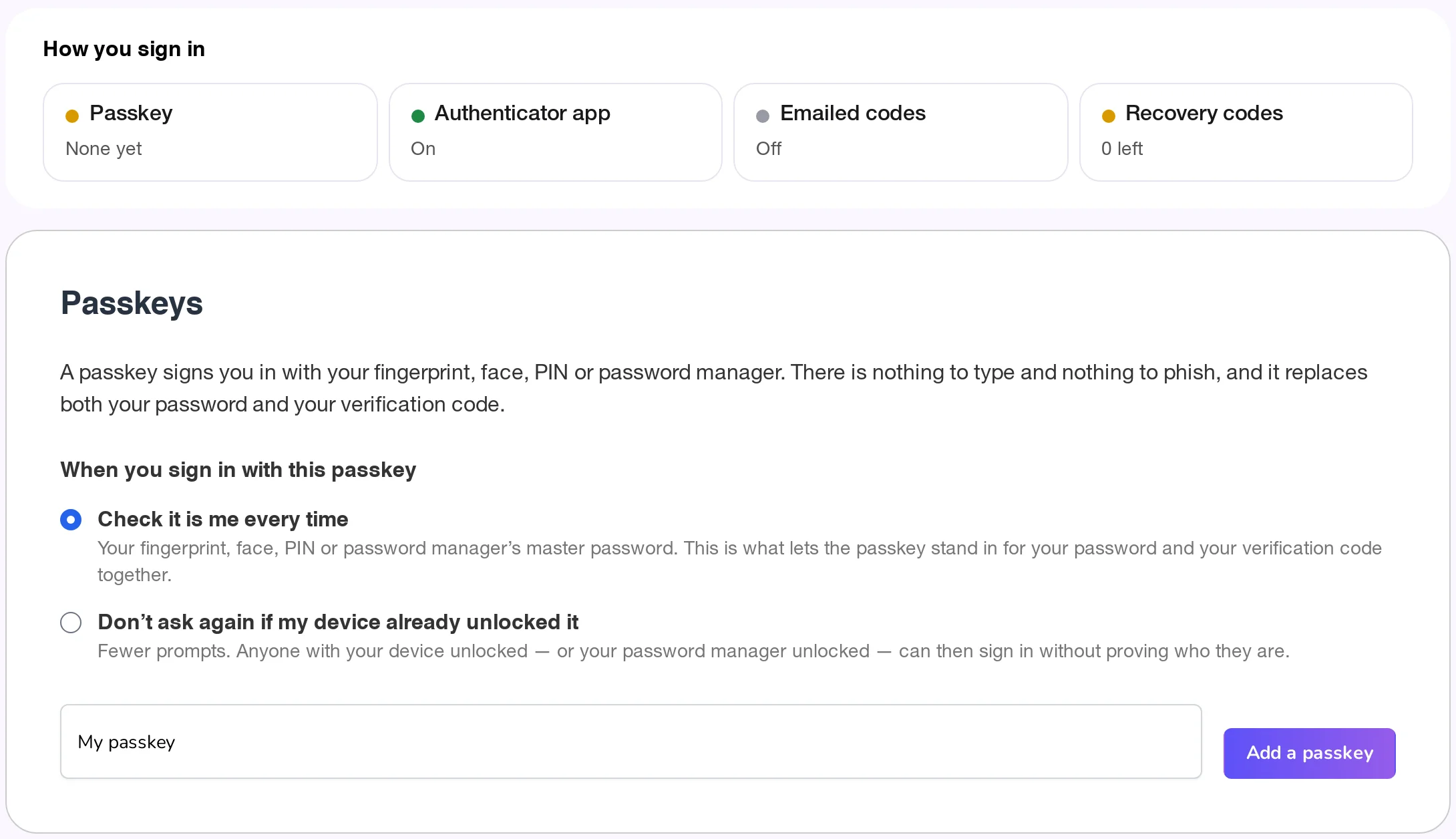
A passkey lets you sign in with your fingerprint, face, device PIN or password manager instead of typing a password and a verification code. To set one up, open Settings, go to the Security tab, find the Passkeys section and press Add a passkey. Your browser then asks you to confirm, and the passkey is saved.
A passkey replaces both your password and your verification code in one step. It cannot be typed into a fake website, which is why it is the strongest way to sign in.
How do I add a passkey?
Open Settings and choose the Security tab. In Passkeys it takes three steps:
- Add a passkey. Press the button.
- Name it. It suggests a name such as "Mac" or "Windows device"; change it to something you will recognize later, like "Work laptop". Then pick how strict it is under When you sign in with it:
- Check it is me every time: your fingerprint, face, PIN or password manager's master password is asked for at each sign-in. This is the choice that lets the passkey stand in for your password and your verification code together.
- Don't ask again if my device already unlocked it: fewer prompts, but anyone with your unlocked device or password manager can then sign in without proving who they are.
- Create it. Press Create the passkey and follow your browser's or password manager's prompt. Cancel closes the steps without adding anything.
Adding a passkey needs a recent sign-in. If you are asked to, sign out, sign in again and then add it.
If you see "This browser cannot use passkeys", try a recent version of Chrome, Edge, Safari or Firefox.
How do I sign in with a passkey?
On the sign-in page, press Sign in with a passkey and confirm on your device.
What does each passkey show?
Each passkey in the list shows where it is saved, what kind it is, whether it checks it is you, and when it was last used:
- Syncs with your password manager: saved in a password manager such as Dashlane, 1Password or Google Password Manager, so it is on every device they are.
- Security key — works on any computer or phone you plug it into or tap: a YubiKey or similar.
- Works on this device only: Windows Hello, or a passkey kept only on one computer or phone.
- On one device, or a security key you carry: a passkey added before 4 November 2026, when we started recording which kind it is. Add it again to get the exact label, then remove the old entry.
Use Rename to change its name and Remove to delete it.
Should I turn off password sign-in?
Once you have a passkey, the page shows a Password sign-in switch. The page recommends turning it off, because a password is still something that can be phished.
You can turn it off only if you have a second passkey, or a passkey that syncs to a password manager. If your only passkey works on one device, the page asks you to add another first, because losing that device would lock you out.
After you add a passkey, the page may offer to do this straight away with "Turn your password off?" You can turn password sign-in back on from the same page at any time, and removing your last passkey turns it back on for you.
What if I lose my passkey?
Generate sign-in recovery codes on the same Security tab, and set up an authenticator app if you can. On the sign-in page, I'm having trouble signing in, then My passkey isn't working, lets you in with a code from your authenticator app and one of your sign-in recovery codes, with no password or email. See trouble signing in.
After you get in without your passkey, your next sign-in opens the Passkeys section with "You signed in without your passkey" and the steps to add a new one already open. If the old one is lost for good, remove it from the list.
What to know
- A passkey can also be used to lock your Daily Backups. A passkey that cannot do this is labelled "Signs you in, but can't lock Daily Backups". See lock your backups with a passkey, recovery code or password.
- When you have a passkey or an authenticator app, emailed sign-in links are switched off for your account, because email is the weakest way in.
- People you share a calendar view with can use a passkey too, separately from yours. See email or passkey: choosing how strict a shared view is.