How to restore a calendar from a backup
Updated 4 November 2026
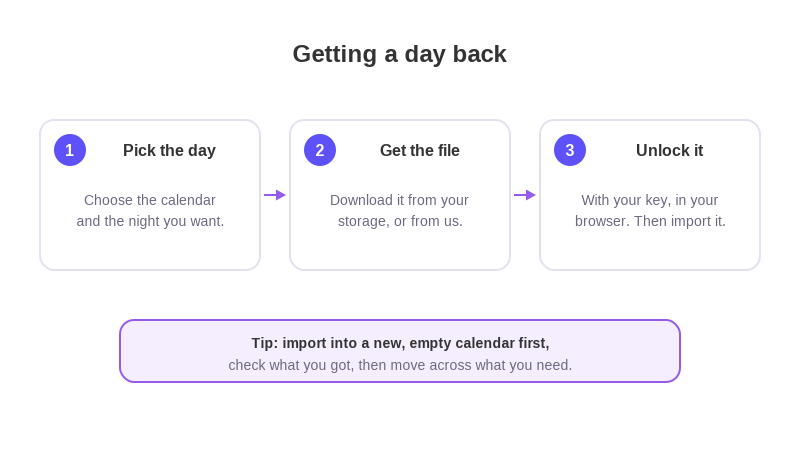
To get a calendar back, open Daily Backups, go to the Status tab and press Recover next to the calendar. Pick the night you want on the calendar, unlock the file if it is locked, and download an .ics calendar file. You then import that file into Google Calendar, Outlook or Apple Calendar yourself. GetCalendario never writes anything back into your calendar for you, so nothing changes until you import.
Each backup is the whole calendar as it stood that night, every event past and future, not just that day's events. Pick the last night from before things went wrong. Daily Backups is on paid plans and during the 14-day trial; if you have not set it up, see how Daily Backups work.
Step by step
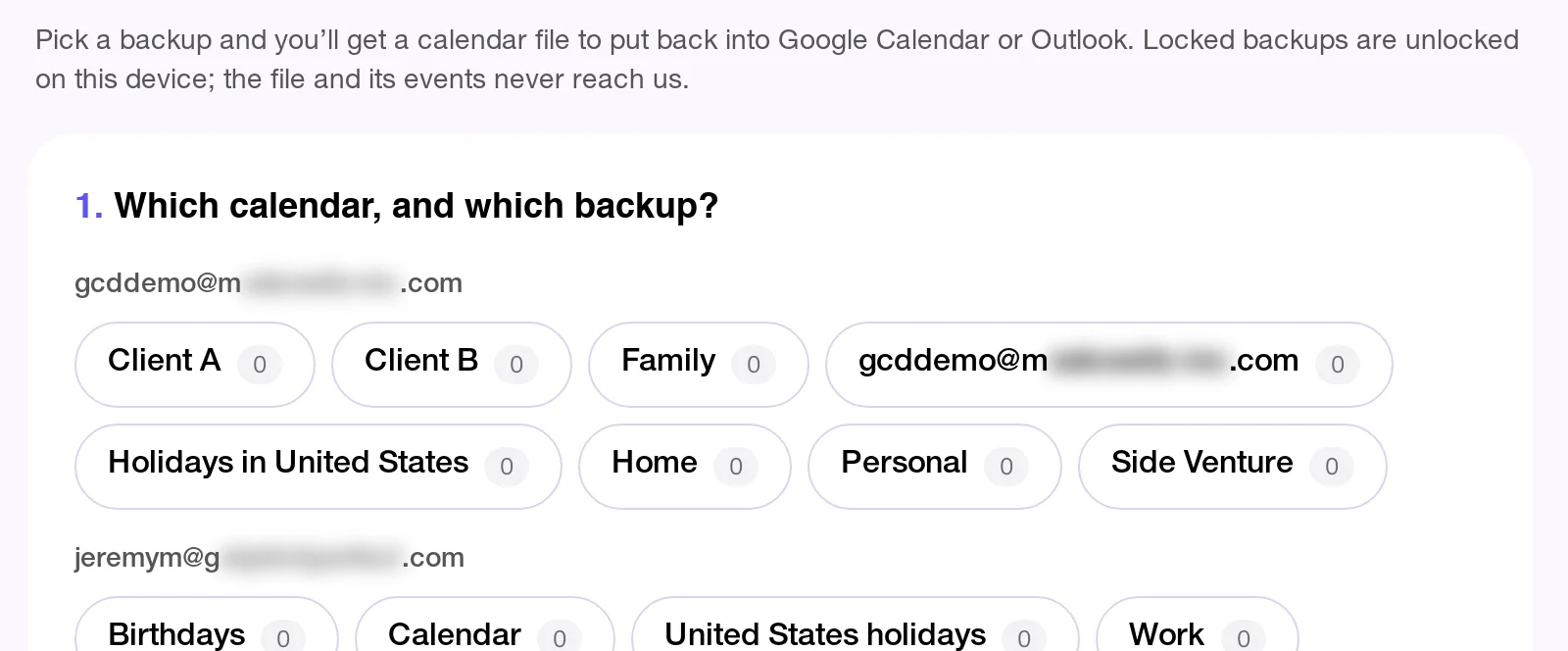
On the Status tab, your calendars are listed under the account they belong to. Each one shows its switch, its last backup (the date, how many events, how many of those GetCalendario copied in, and how many backups are kept) and a Recover link. When a backup holds copied-in events, the link reads Recover your own events or everything.
Pressing Recover opens Recover for that calendar, with its latest backup already picked and ← Back to Status above it.
- Which backup? Your backups are shown as a calendar: a box for each night, with that night's event count in it. Click a day to pick it. A day with two backups, for example a nightly one and one taken before the first sync of a new connection, picks the newer one and lists both under the calendar so you can choose. A night with no backup shows ! and the reason is listed underneath, for example that the sign-in to the calendar had expired that night, or that your storage was full. The calendar covers the last 30 days.
- Get the backup file. This step appears only when the backups went to your own storage. For Dropbox you get a link to open the file there. For Amazon S3 or Azure you get the exact path, with a Copy path button and a link to the storage console, because GetCalendario's key can only add files and cannot fetch them. Download the file to your device. If a backup is kept on our servers, this step is skipped and the file is fetched for you.
- Add the file. Use Add the downloaded file. The page checks that it is a GetCalendario backup, for the calendar and night you picked, before anything is unlocked. If you added another night's file it tells you which night it is and lets you continue with it or pick again.
- Unlock it. Locked files are unlocked in your browser. You are offered only the ways that fit that file: Unlock with my passkey, Use my recovery code instead, or Use my backup password. A locked zip asks for its numbered password. Backups that were never locked skip this step. See how locking works.
- What to take back. If GetCalendario copied events into this calendar from another one, you first choose which events: My own events only (the default) leaves out every event GetCalendario copied in, and says how many and from which calendars; Everything, including synced-in events gives the calendar exactly as it stood that night. Then choose The whole calendar, or Only these dates and enter a From and a To date. The second is useful when you only deleted a week.
- One thing before you import. If any of your connections copy events out of this calendar, the page lists them. Importing gives every event a new ID, so those connections would see them as new and copy them all out again, next to the copies already there. Press Pause these first: nothing is deleted, and a two-way connection pauses both ways. Resume them once you have checked the import.
- Export the calendar file. Press Download .ics. There is also a small link to the raw copy your calendar provider sent, as a
.jsonfile, which is only for your records. - Put it back. The page shows import steps for your calendar's provider. In Google Calendar, open Settings, then Import & export, choose the file, pick the calendar and press Import. In Outlook on the web, open Calendar, then Add calendar, then Upload from file. For an Apple calendar, open Calendar on a Mac, then File, then Import (iCloud.com can't import files).
How does it know which events are mine?
Since 1 November 2026 every backup marks each event GetCalendario wrote into that calendar. An event with the same name and time as a copy, but that we did not write, counts as yours and comes back. Backups recorded before then say "This backup is from before we marked copies, so it holds everything," and give you the whole calendar.
If what you really want is to take GetCalendario's copies off a calendar rather than restore it, see remove GetCalendario's copies from a calendar.
Is my backup uploaded anywhere when I open it?
For a locked file, no. The file and its events never reach us. For a zip locked with a generated password, your browser fetches that password from us after a passkey sign-in. Either way, opening, choosing dates and building the .ics all happen on your device. Files that were not locked and are stored on our servers are turned into an .ics by our servers instead, since there is nothing to keep secret from us.
What to know
-
Import into a new, empty calendar first. The page says this itself: check what you got, then move across what you need.
-
Opening a locked file needs the key. If you have lost every passkey, recovery code and password for a locked backup, it cannot be opened. A zip locked with a generated password can still be unlocked after a passkey sign-in.
-
After 30 days, backups on our servers are gone. In your own storage they stay until you remove them.
-
The plain address still works.
/backups/restoreon its own, the link in the README inside every backup file, lists all your calendars under their accounts so you can pick one: