
Remove GetCalendario's copies from a calendar
Updated 2 November 2026
If a sync filled a calendar with copies you don't want, you can take GetCalendario's copies off it and leave everything you made yourself. You see exactly what will be removed before anything happens, the connection is paused first so the copies don't come straight back, and on paid plans a backup is taken just before, so you can undo it. It works on every plan, Free included.
Step by step
-
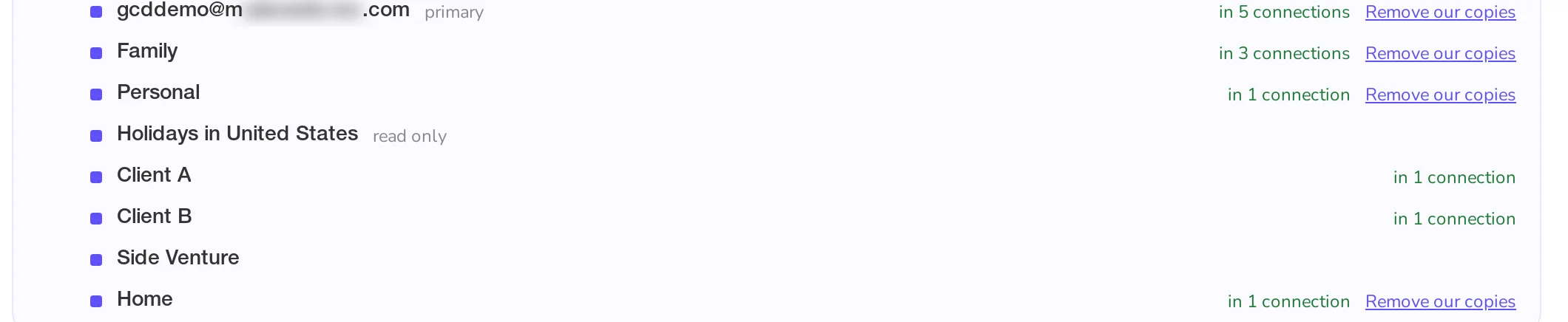
On Home, open the account and press Show calendars. Each calendar GetCalendario has added copies to has Remove our copies. (In Daily Backups → Recover calendar, a backup that holds copies also offers Or remove our copies from … instead.)
-
GetCalendario checks every copy it has added to that calendar with Google or Outlook. This can take a minute.
-
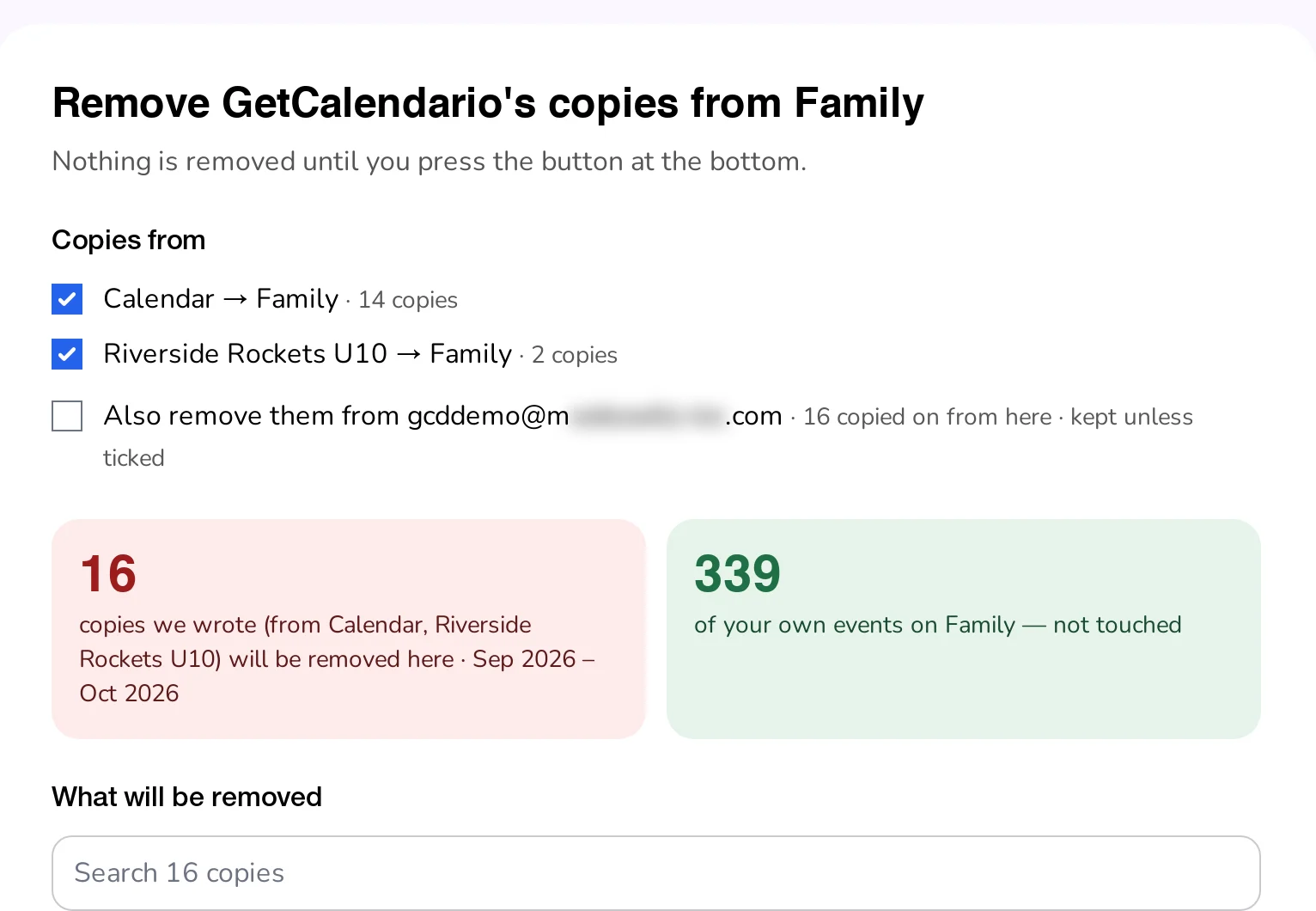
Choose which copies. Copies are grouped by the connection that added them. From removed syncs holds copies left behind by connections you removed earlier with "leave events in place". Untick any you want to keep.
-
Read the preview. It shows how many copies will be removed and from which calendars, the dates they cover, and how many of your own events will not be touched. You can search the list of what will be removed.
- Kept — changed by you since we copied them: copies you edited yourself (a note added, one week moved). They stay unless you tick Remove these too.
- Kept — look like copies, but they're yours, or we can't prove we added them: an event with the same name and time as a copy, but that GetCalendario did not write, is yours and is never removed.
- Also remove them from …: if another of your connections copied these copies on to a third calendar, those stay where they are unless you tick this.
-
Press Pause and remove N copies. On paid plans with Daily Backups on, the calendar is backed up first. Then the connection is paused (a two-way connection both ways), and the copies are removed.
-
Done. You see how many were removed. Any that could not be removed yet (Google or Outlook asked us to slow down) can be tried again with Try the N again. We also email you a summary.
Getting things syncing again
The connection stays paused until you press Resume, on the Done page or on Home. Resuming copies events again under its current rules, so if a rule caused the mess, fix the rule first.
Removed something by mistake?
On paid plans with Daily Backups on, the Done page links to the backup taken just before. Restore it with My own events only or Everything, as in how to restore a calendar from a backup. Without a backup, resuming the connection copies its events back from the source calendar; anything you had added to a copy by hand is not brought back.
What to know
- Only copies we can prove we added are removed. GetCalendario keeps a record of every event it writes and puts a private mark on each one. An event needs both to be removed. Copies made before 2 November 2026 are checked against when Google or Outlook says they were created; any we can't prove are kept and listed.
- Your own events are never touched, even ones with exactly the same name and time as a copy.
- While a cleanup is running you can't resume the connections it paused. You can leave the page.
- Google and Outlook calendars only. Calendars connected through our older engine, Apple calendars and feeds can't be cleaned this way.