
How to share your availability by link
Updated 3 September 2026
You want someone to be able to check your availability without emailing back and forth, and without setting them up with a full account. Sharing your calendar by link does exactly that — read-only, and gone the moment you decide it should be.
What sharing gives someone
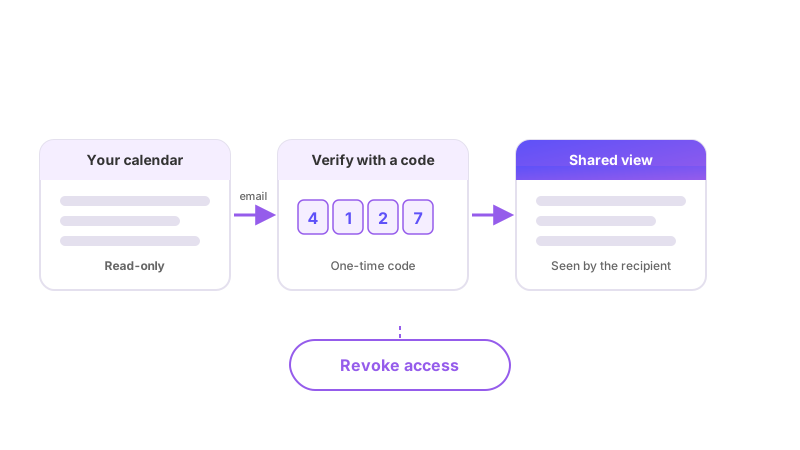
A calendar share is read-only. The person you share with can look at your calendar to see when you're free or busy; they can't create, edit, or delete anything on it. You choose which of your calendars are visible in the share, and whether events marked private show up at all or are hidden from view entirely. This is the right tool when someone just needs to see your time, not have it added to their own calendar — a client checking when you're free before booking a call, a contractor who needs to see your schedule but has no reason to be on your team, or anyone else you'd rather not set up with a full account just to look at a few weeks of your calendar.
Sending an invite
From the Share Calendar View page, enter the email address of the person you want to share with and send the invite. GetCalendario emails them a link. They don't need a GetCalendario account, a Google account, or anything else — the link is all they need to start the process.
How the recipient gets in
Opening the link takes the recipient to a verification step rather than straight into your calendar. They confirm their email address, and GetCalendario sends a one-time code to it. Entering that code is what actually grants access — the link alone isn't enough on its own, so someone who intercepted the email without also having access to that inbox couldn't get in. Once verified, they can see whichever of your calendars you've shared, for as long as the share stays active.
If they lose the original invite email, you can resend it from the Share Calendar View page rather than needing to set the share up again from scratch. There's a short cooldown between resends, so if you've just sent one, give it a few minutes before sending another.
Revoking access
You can revoke a share at any time from the Share Calendar View page. Doing so ends that person's access immediately — there's no waiting period, and no need to change your password or anything else about your account to make it take effect. If you later want to share with the same person again, you send a fresh invite.
What this isn't
A shared availability link isn't a sync connection. It doesn't copy events onto another calendar, and it doesn't work in the other direction — sharing your availability with someone tells them nothing about theirs, and gives them no way to add anything to yours. If what you actually need is for events to appear on someone else's calendar rather than just be visible to them, that's a two-way or one-way sync connection instead, which is a different feature with its own setup.