
Why is my calendar not syncing?
Updated 3 September 2026
An event that should have copied across but hasn't is almost always one of five things: the connection is paused, the event is outside the sync window, a filter is dropping it, the connection hasn't passed its initial check, or the calendar account needs reauthorising. Work through them in this order — each rules out one possibility before you move to the next.
The connection is paused
A connection can be paused two ways: you paused it yourself, or GetCalendario paused it automatically because the connection stopped being able to write to its destination — usually a broken token. Either way, a paused connection copies nothing at all until it's resumed. Check the connection's status before anything else; if it's paused, nothing past this point matters until you fix that.
A connection GetCalendario paused itself resumes on its own once the underlying problem clears — most often, once you reauthorise the account (see the last section below). A connection you paused yourself stays paused until you resume it, so it's worth checking you didn't pause it deliberately and forget.
The event falls outside the plan's sync window
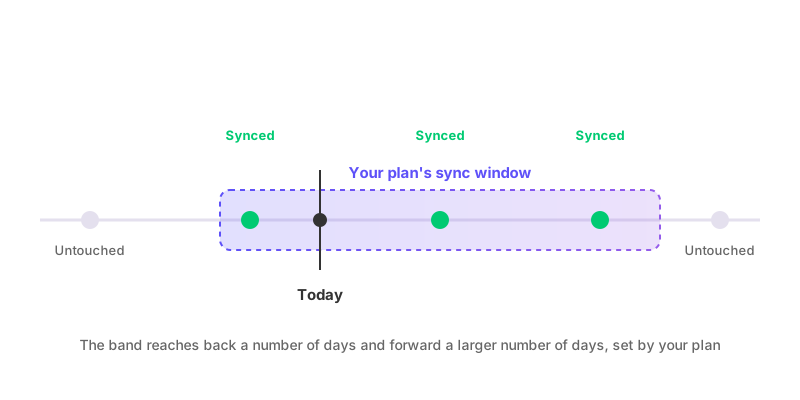
Every plan has a sync window — a number of days back and a number of days forward from today — and connections only look at events inside it. An event dated further in the past or further in the future than your plan's window simply isn't evaluated yet; it's not that it failed to sync, it hasn't been considered at all. As the window moves forward day by day, an event will start syncing once it falls inside it, but nothing catches up retroactively before that point. If you need a wider window, that's a function of your plan rather than a setting on the connection.
A filter is dropping it
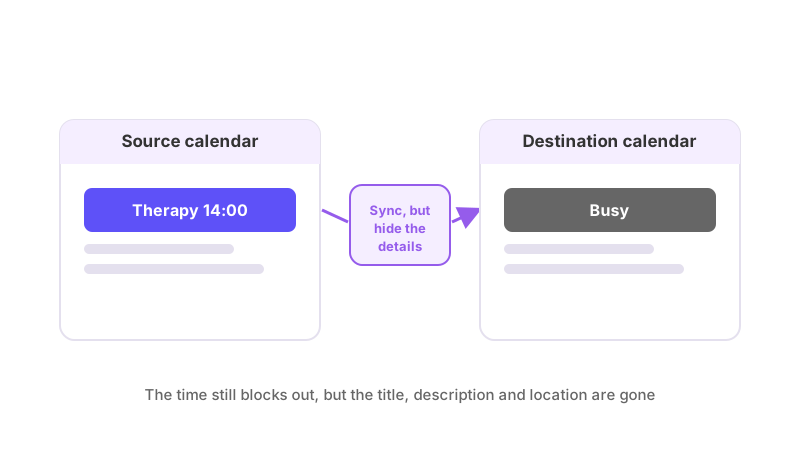
If the connection has a filter attached, it might be doing exactly what it was set up to do. A filter can either stop an event syncing entirely, or let it sync stripped down — the time still blocks out, but the title, notes and location are gone and the copy is marked private. Filters are attached to individual connections, and who set the filter matters:
- A primary account holder's filter applies only to the one connection it was created on. It has no effect on any other connection, including a second one between the same two calendars.
- A secondary's filter works differently: it applies to every connection touching their calendar, including ones created after the filter was set. A secondary can only make events less visible — they can't stop an event syncing outright, only hide its details.
Adding a keyword to a filter removes any copies already synced that match it; removing a keyword brings those copies back. Both happen within the sync window and within seconds, so if an event just disappeared or reappeared with no other explanation, check whether a filter keyword was just added or removed.
The connection has not passed Test Flight
Every new connection runs through Test Flight before it's allowed to sync anything real: GetCalendario writes a trial event to the destination calendar, confirms it arrived, then removes it. This exists specifically to catch a connection that looks correctly configured but can't actually write to its target — a calendar you don't have edit access to, for instance. Until Test Flight passes, the connection won't sync any of your actual events, however correctly everything else about it is set up. If a brand-new connection isn't doing anything at all, this is the first thing to check.
The calendar account needs reauthorising
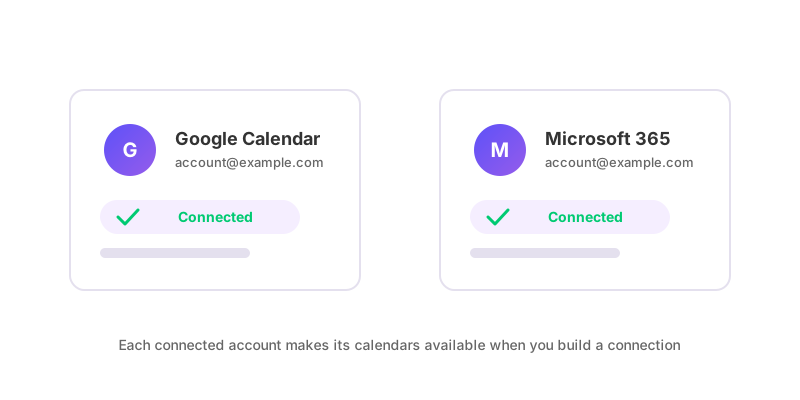
Google and Microsoft tokens expire or get revoked — a password change, a security review, an admin revoking access — and when that happens, GetCalendario can no longer read or write events on that account. This is usually what triggers the automatic pause described above: the connection stops being able to write to its destination and pauses itself rather than failing silently.
The fix is to go back to the Accounts page and reauthorise the affected account — signing in again and re-granting permission. Once that's done, a connection GetCalendario paused for this reason resumes on its own; you don't need to unpause it by hand.
If you've checked all five and an event still isn't syncing the way you expect, it's worth reviewing the connection's settings from scratch — see how to set up two-way calendar sync if what you actually need is a second connection running the other direction, not a fix to this one.