
How to add a calendar feed (.ics link)
Updated 11 October 2026
Lots of calendars aren't in anyone's Google or Outlook account: a school's calendar, a team's game schedule, a meetup group's events. They usually offer a calendar feed instead, an address ending in .ics or starting with webcal://. Paste that address into GetCalendario and you can copy its events onto your own Google or Outlook calendar, with all the usual sync rules.
What you need
- A paid plan or your trial. Calendar feeds aren't included in the free plan.
- The feed's address. Look for "Subscribe", "iCal", "Add to calendar" or "Export" on the site, and copy the link rather than clicking it.
- A Google calendar: in Google Calendar, open that calendar's Settings and copy Secret address in iCal format.
- A public Google calendar's "add calendar" link works too.
- A Google or Outlook calendar to copy into.
Add the feed
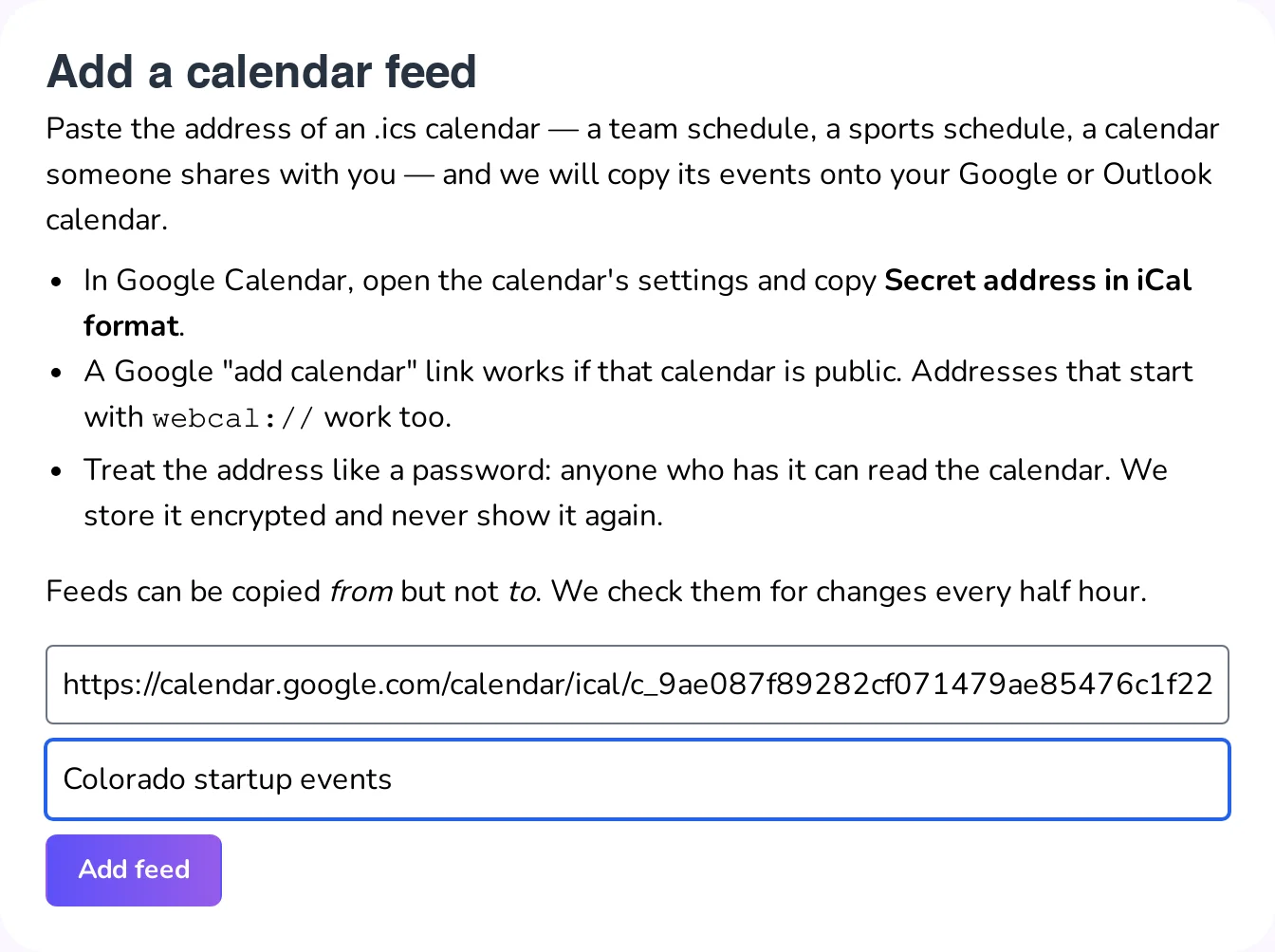
- On Home, choose Add account, then Calendar feed (.ics link - Read Only).
- Paste the address. Give it a name if you like, so it's easy to spot later.
- Choose Add feed.
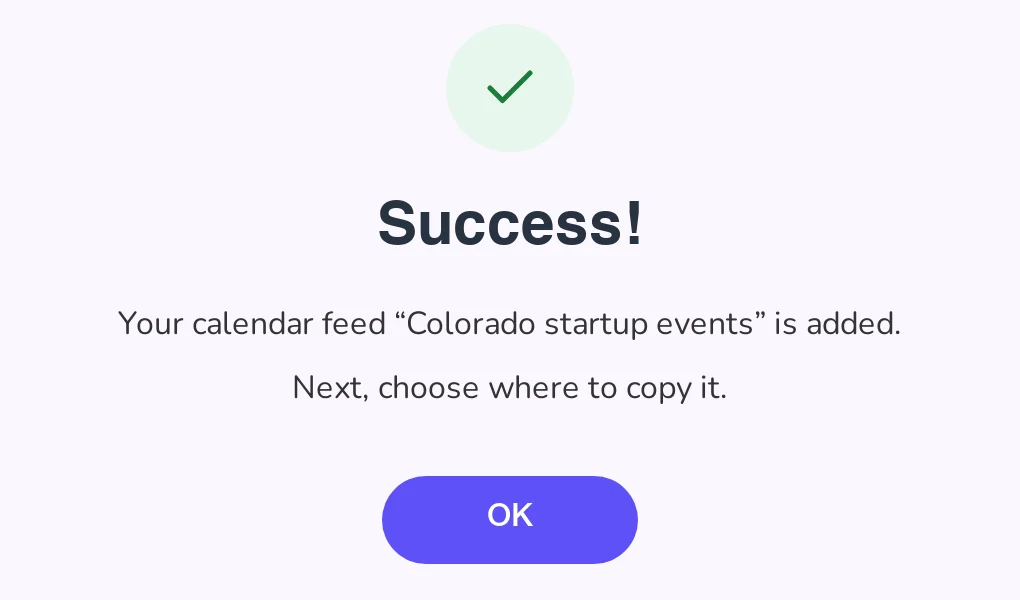
- You'll see Success! Choose OK.
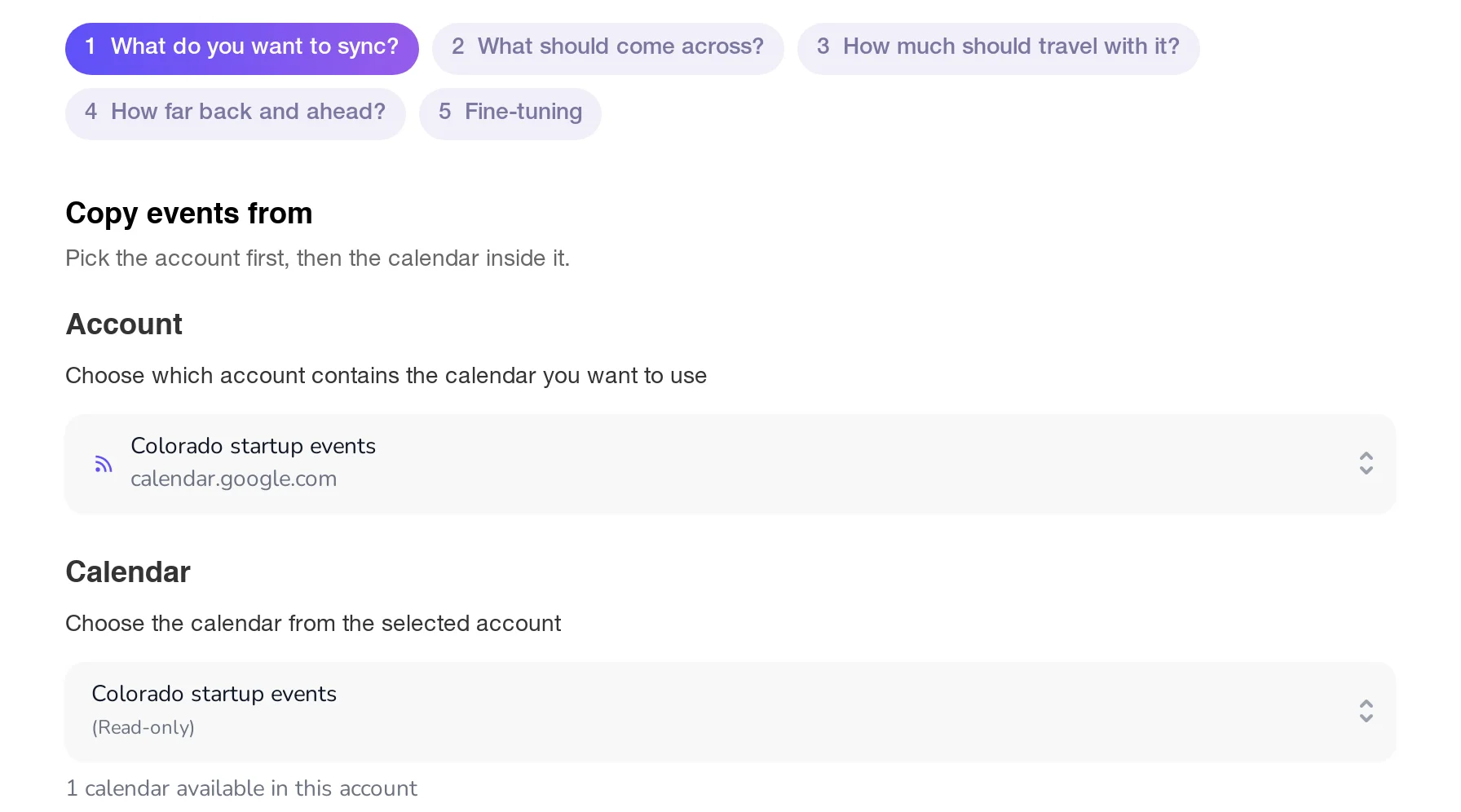
- The new-connection wizard opens with the feed already chosen as the calendar to copy from. Pick your Google or Outlook calendar to copy into, and finish the wizard as usual. See how to create a new connection if you haven't made one before.
Good to know
- One way only. A feed is read only: its events can be copied from it, never onto it. Changing a copy on your calendar doesn't change the feed.
- Changes arrive within about half an hour. We check each feed for changes every half hour, so feed updates don't arrive as quickly as changes to a Google or Outlook calendar do.
- Treat the address like a password. Anyone who has a secret address can read that calendar. We store it encrypted and never show it again, not even to you; only the website's name appears in GetCalendario.
- Up to 10 feeds, and they don't count toward your plan's number of calendar accounts.
- If the address stops working, for example because the site removed the calendar or you reset a Google secret address, the feed's connections pause and we email you. Nothing already copied is removed. Add the feed again with its new address.
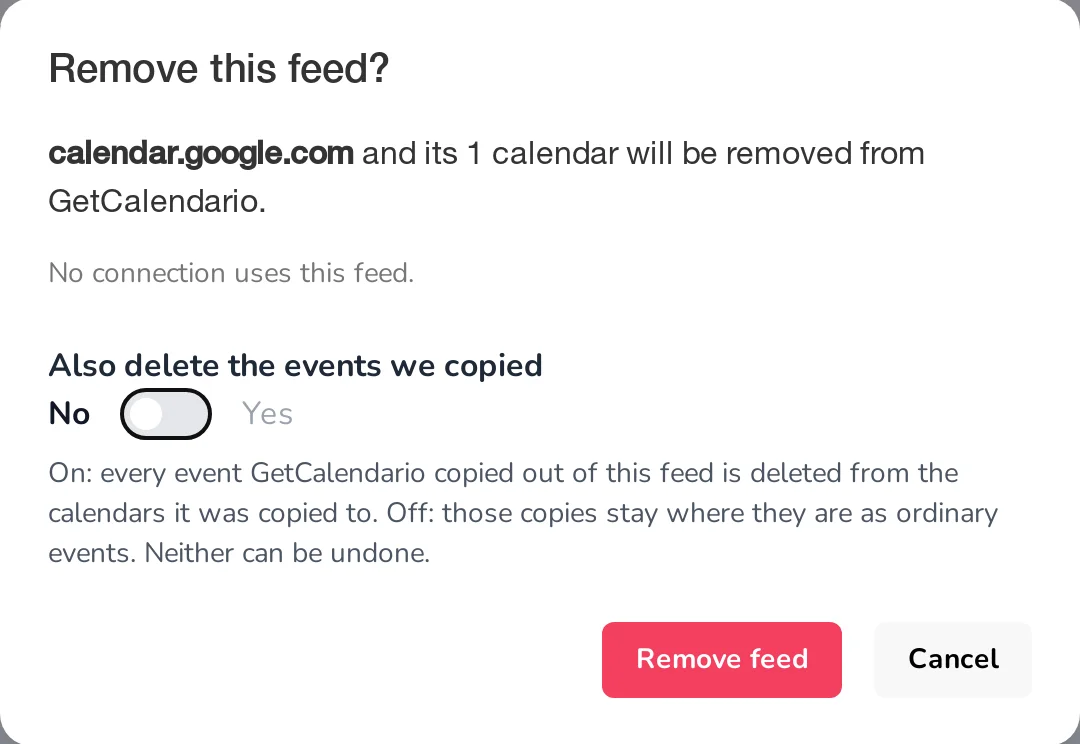
- Removing a feed: on Home, the feed is listed under its website's name (for example calendar.google.com). Open its ⋯ menu and choose Remove feed. You can choose to delete the copies it made, too.
Apple calendars connect differently; see how to connect an Apple calendar.