
How to sync Google Calendar with Outlook
Updated 30 October 2026
If you keep a Google Calendar for one part of your life and an Outlook calendar for another, you've probably double-booked yourself at least once. GetCalendario connects the two and copies events across automatically, so a meeting on one shows up on the other — as a full copy or just a placeholder — without you doing anything by hand.
What you need
- A GetCalendario account with both calendars added: a Google account, and an Outlook.com or Microsoft 365 account on the Microsoft side.
- The ability to sign into both accounts once, so GetCalendario can authorize against them.
- An idea of your plan's sync window — connections only act on events inside it, which matters for what happens next.
Connect both accounts
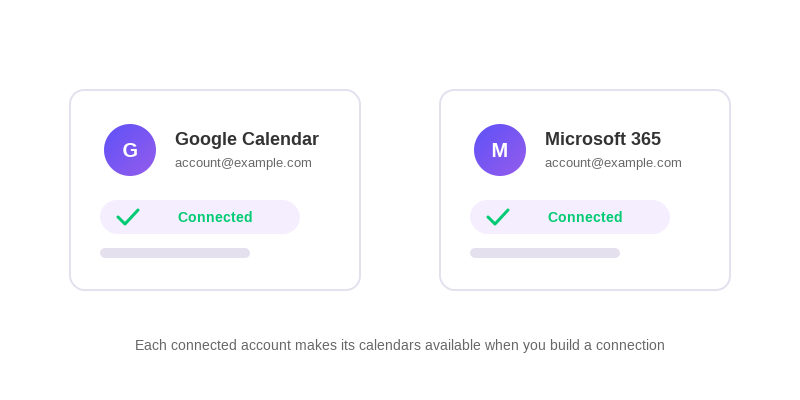
From the Accounts page, add the Google account and the Microsoft account. Outlook.com and Microsoft 365 both sign in through the same Microsoft flow, so it doesn't matter which one you're actually using. GetCalendario asks you to sign in to each and grant it permission to read and write calendar events. Once both accounts are listed, their calendars are available to choose from when you build a connection.
Create the connection
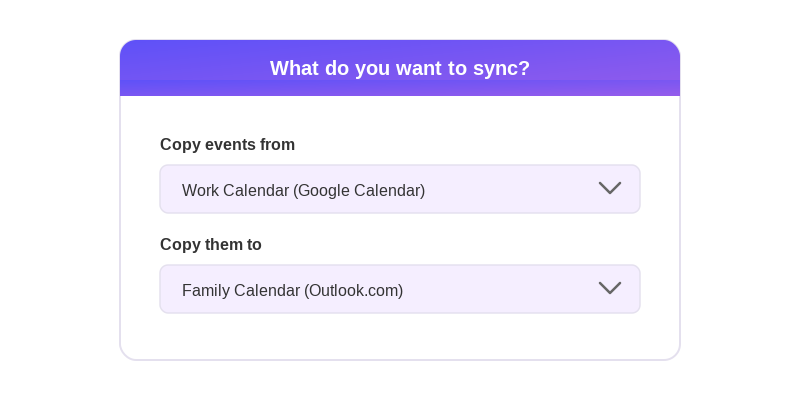
A connection is a one-way sync from one calendar to another — that's true no matter which two providers are on either end. Go to Add Connection, pick the Google calendar as the source and the Outlook calendar as the destination, and choose what gets copied over: full event details, or just a busy placeholder with the title and description overridden to something generic.
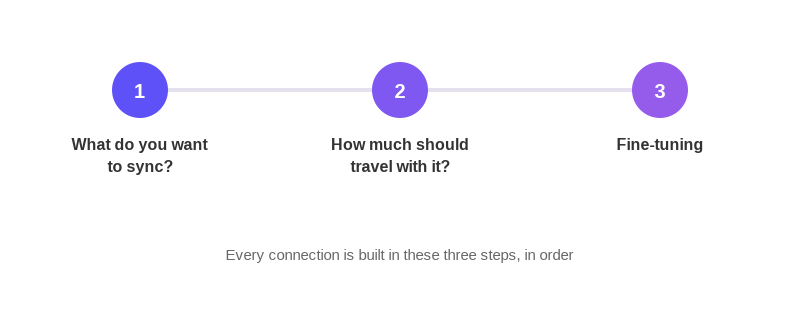
Before the rest syncs, GetCalendario runs the connection through Test Flight. It writes two throwaway events to the destination calendar and removes them again, then copies a few of your real events across so you can open the destination and check them. That catches a calendar you don't actually have write access to, or a permission that didn't take, before the rest of your events are copied.
Make it two-way
This is the part people miss: a one-way connection only copies in one direction. Choose Both ways when you create the connection, or Sync both ways on a connection you already have. It's one connection on Home that copies in both directions and counts as two against your plan. Each direction can have its own rules and settings. See how to set up two-way calendar sync.
What syncs, and what does not
Once both connections are running, new and changed events inside your plan's sync window sync automatically, in both directions once it is two-way. Events further in the past or further in the future than that window aren't evaluated at all — they simply sit outside where the connection is looking, until the moving window reaches them.
Deleting an event removes its copy on the other calendar. That happens silently: attendees are never copied onto a synced event, so nobody on the invite gets a notification because a copy was created or removed.
If a rule is set to stop certain events syncing, or to hide their details, remember it's attached to one connection, not both — a rule you set on the Google → Outlook connection has no effect on the Outlook → Google one. If one direction is behaving differently from the other, check the rules on each side separately. For a full walkthrough of what stops an event from syncing, see why is my calendar not syncing.