
How to set up two-way calendar sync
Updated 7 November 2026
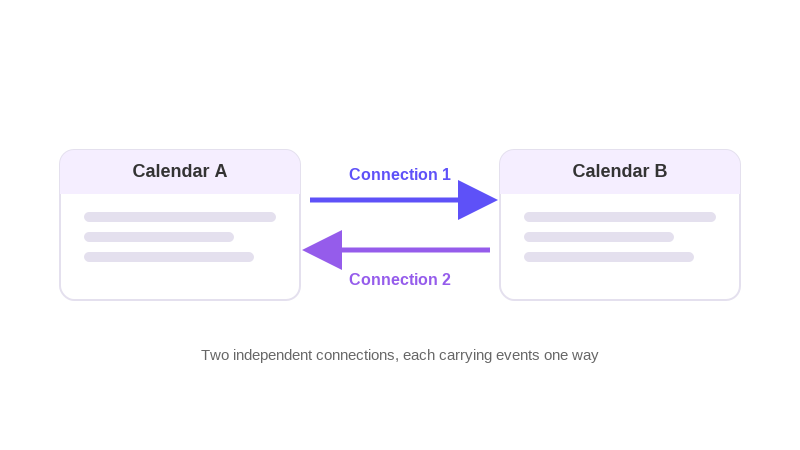
Two-way sync keeps two calendars showing the same events, whichever one you edit. Behind the scenes a two-way connection is a pair of one-way connections, one in each direction, that start, pause and go together. GetCalendario recognizes its own copies, so an event copied from A to B is never copied back to A as a second event.
Make a new connection two-way
- Choose Create connection.
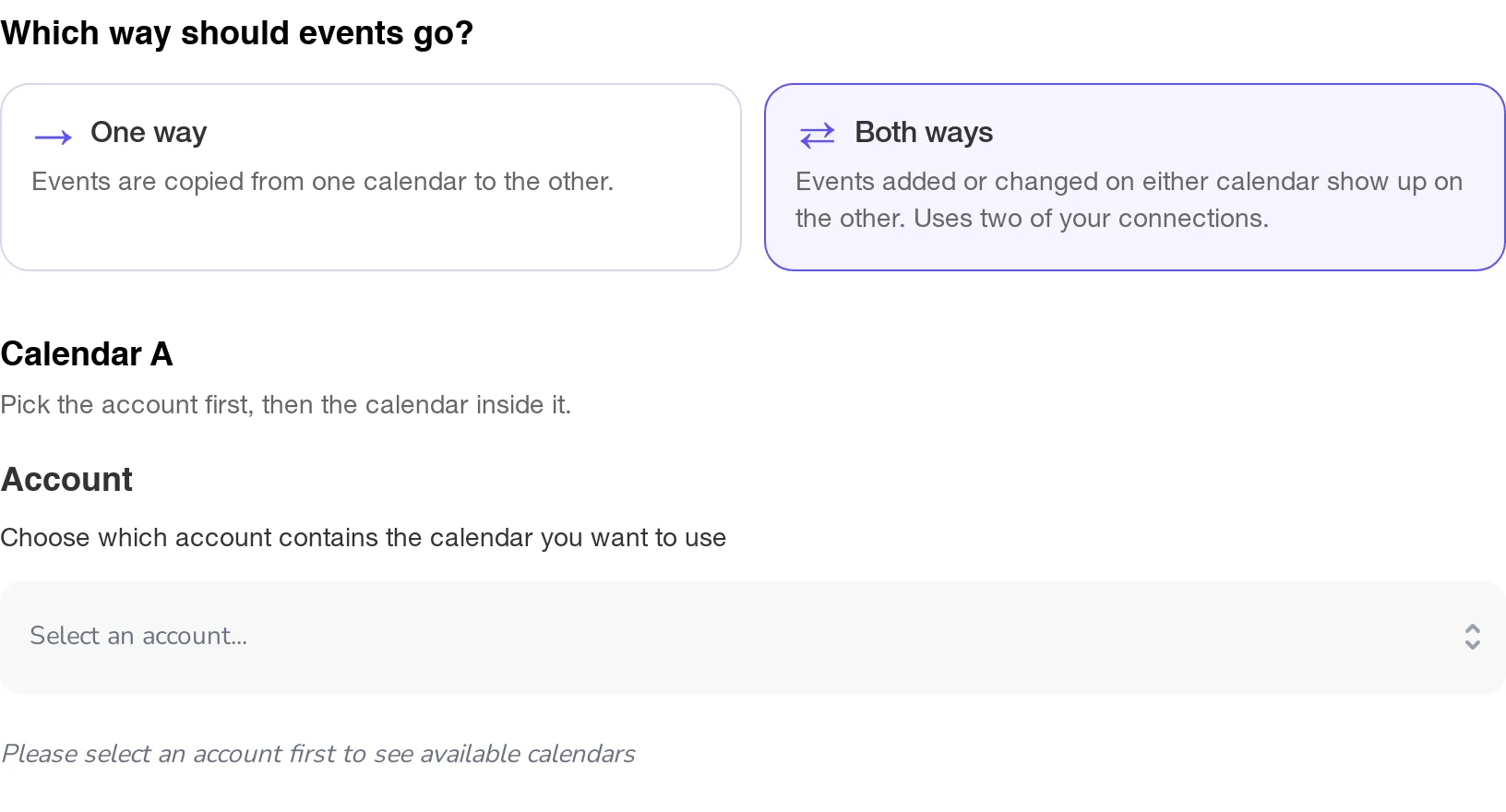
- On the first step, choose Both ways instead of One way.
- Pick the two calendars. They are called Calendar A and Calendar B, because each one is a source as well as a destination.
- Go through the steps as usual. Each step has a direction switch, A → B, B → A or Same for both. It starts on Same for both, so the two directions get the same settings. Switch a step to one direction when you want them to differ.
- Check both directions in Test Flight before anything real is copied.
Turn an existing connection into a two-way one
On Home, open the connection and choose Sync both ways. The connection you have keeps running exactly as it is, with all its rules. GetCalendario then adds the other direction as a second half and asks what it should copy:
- The same rules as A → B, which copies the rules that work on either calendar. Rules that depend on one calendar's labels, categories or routes are left out. If your connection is set to sync only the events that match and none of its rules can be used the other way, choose Everything or set the other direction up in the wizard.
- Everything, with no rules to start with. You can add rules afterwards.
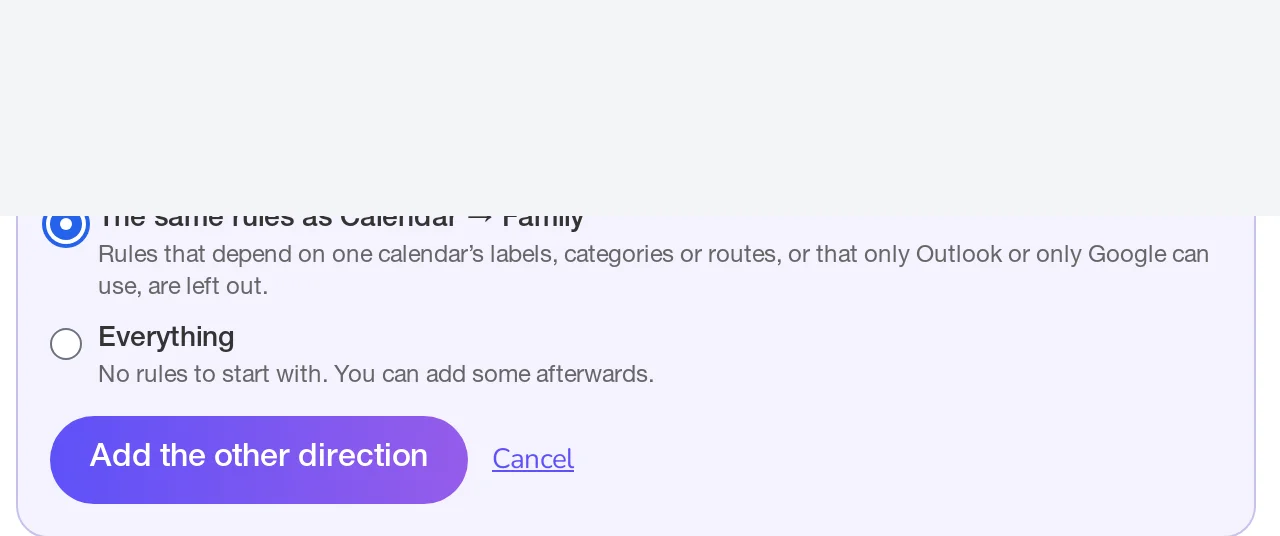
The new half has its own Test Flight, and starts only when you confirm it.
If you try to create a one-way connection from B to A when A to B already exists, GetCalendario tells you to turn it into a two-way connection instead.
Which calendars can be two-way?
Any two Google, Outlook or Apple (iCloud) calendars, in any pair. Both calendars are written to, so neither can be read-only: a calendar feed (an .ics link), or a calendar someone shared with you as view-only, can only be copied from. A calendar connected through our older engine, Cronofy, needs its account reconnected first.
How it counts against your plan
A two-way connection counts as two connections, because it is two underneath. It isn't available on the Free plan; Free shows the option with a prompt to upgrade. See one-way or two-way calendar sync for the numbers per plan.
What moves together, and what doesn't
A two-way connection is one row on Home, with an arrow pointing both ways, and these happen to both halves at once:
- Pausing and resuming. Pausing either direction pauses the other, so one direction is never left running on its own.
- Deleting. Deleting a two-way connection removes both directions.
- A plan change. If your plan can no longer hold it, the pair is paused together, and the Subscription page lets you keep the pair as one choice.
Rules and settings can differ by direction. A rule on A → B has no effect on B → A. That's what lets you copy full details one way and only a placeholder the other, for example.
Source and destination calendars
Every direction has one source calendar and one destination calendar. The source is where events come from; the destination is where they are copied to. These are roles, not fixed properties of a calendar: in a two-way connection each calendar plays both. A calendar can also be the source for one connection and the destination for another.
Chain or connection chain
A connection chain is what you get when connections are strung together so that one connection's destination calendar is the next connection's source calendar: Calendar A → Calendar B → Calendar C, and so on. Each link is still its own connection with its own settings, and an override or rule on one hop doesn't carry through to the next.
Mistakes this causes
Expecting a rule to protect the other direction. A rule that stops an event syncing, or hides its details, belongs to one direction. If you want the same exclusion both ways, add it to each, or use Same for both when you set it up.
Assuming both directions are in the same state. They start and pause together, but each can still fail on its own, for instance when the token for one of the accounts breaks. If one direction is working and the other isn't, check each separately in Why is my calendar not syncing.
What both directions share, once running
Both directions only act on events inside your plan's sync window, a number of days back and forward set by your plan. An event outside it isn't evaluated until it moves inside.
Deletions sync in both directions too, and do so silently: no attendee is ever copied onto a synced event, so nobody on the original invite is notified because a copy appeared or disappeared on the other calendar.