
How to sync Microsoft 365 with Google Calendar
Updated 30 October 2026
If your employer runs Microsoft 365 but you keep a personal schedule on Google Calendar, you end up checking two places to know whether you're actually free. GetCalendario connects a Microsoft 365 calendar to a Google Calendar directly, copying events across so you only have to look at one to know what's on the other.
What you need
- A GetCalendario account with both a Microsoft 365 account and a Google account added.
- Access to sign into both once, so GetCalendario can authorize against them.
- Awareness of your plan's sync window — how far back and forward a connection actually looks, which is covered further down.
Connect both accounts
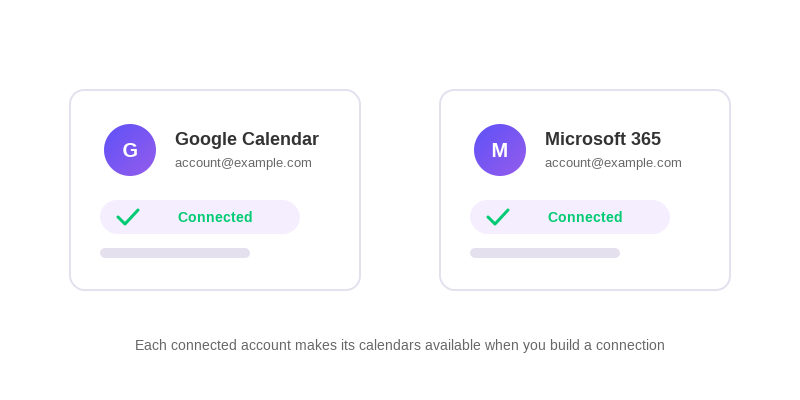
From the Accounts page, add the Microsoft 365 account and the Google account. Microsoft 365 signs in through the same Microsoft flow as Outlook.com, so the connection process is identical either way. Once both accounts are listed, their calendars appear as options when you set up a connection.
Create the connection
Go to Add Connection and choose the Microsoft 365 calendar as the source and the Google calendar as the destination (or the reverse, depending on which direction you want first — a connection only ever runs one way). Since a work calendar often shouldn't leak meeting details to a personal one, this is a good place to turn on the private setting, which marks the copied event as private on the destination calendar.
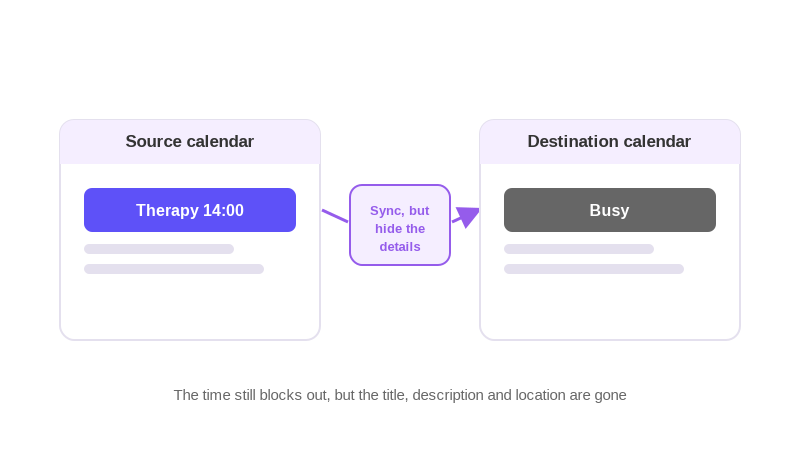
You can also copy just a placeholder instead of the full event — the time gets blocked out with a generic title rather than the real meeting name. Either way, before the connection goes live it runs Test Flight, writing a trial event to the destination calendar to confirm GetCalendario can actually write there, then removing it.
Make it two-way
A one-way connection only copies in one direction. To have your Microsoft 365 meetings show up on Google and your Google events show up on Microsoft 365, choose Both ways when you create the connection, or Sync both ways on a connection you already have. It's one connection on Home that copies in both directions and counts as two against your plan. Each direction can have its own rules and settings. See how to set up two-way calendar sync.
What syncs, and what does not
Once running, new and changed events inside your plan's sync window sync automatically, in both directions if the connection is two-way. Events outside that window — further in the past or further ahead than your plan allows — aren't looked at until the window moves to include them.
Deleting an event removes its copy on the other calendar, and does so silently: nobody on the guest list is ever added to the synced copy, so no one gets notified purely because a copy was created or removed.
If an event isn't syncing the way you'd expect, check whether a rule is dropping it or just hiding its details — rules attach to one connection at a time, so the same event could sync fully in one direction and get redacted in the other. Why is my calendar not syncing covers this and the other common causes in order.