
How to turn on two-factor sign-in with an authenticator app
Updated 4 November 2026
When you sign in with a password, GetCalendario asks for a second step before it lets you in. By default that step is a code emailed to you. You can add an authenticator app (Authy, Google Authenticator, Microsoft Authenticator or similar) and use its codes instead. To do it, go to Settings, then the Security tab, then Authentication, and press Set up an authenticator app.
There are two second steps today: the emailed code and an authenticator app. A passkey, covered below, replaces the whole password-plus-code process.
Email code or authenticator app: what is the difference?
- Email code. On by default for every account. After your password, you choose "Email me a code" and type the code from your inbox. A code works for 10 minutes, and after five wrong guesses it is cancelled and you have to ask for a new one.
- Authenticator app. After your password, you type the six-digit code your app shows, with no waiting for an email. The page itself says that switching off the email code increases security.
- Passkey. Replaces your password and the second step together. See how to set up a passkey.
How do I set up an authenticator app?
- Open Settings and choose the Security tab.
- In Authentication, press Set up an authenticator app.
- A dialog opens with three steps: Scan, Enter the code, Done. Open your authenticator app and scan the QR code. It appears as GetCalendario. If you cannot scan, enter the key shown under the code instead.
- Enter the six-digit code your app shows. Authenticator sign-in is not on until you do this.
You get an email confirming the authenticator was turned on. If you close the dialog partway, the page shows "Authenticator setup isn't finished". Press Finish setting up, and delete the old GetCalendario entry from your app first, because you are given a new code to scan each time.
How do I stop using email codes?
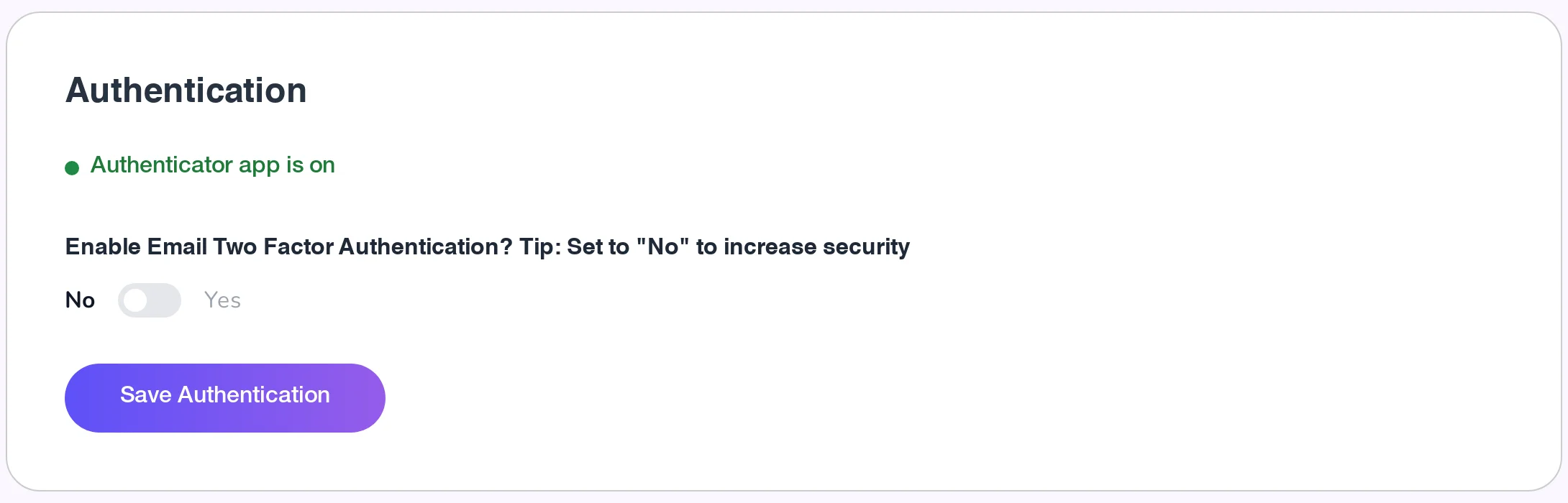
Once the authenticator app is on, the Enable Email Two Factor Authentication? switch becomes available. Set it to off and press Save Authentication. Before the app is set up the switch is disabled, with the note that you can disable email codes once you have set up the app. With email codes off, signing in with your password asks for your authenticator code instead.
How do I replace or turn off my authenticator app?
In Authentication, under "Authenticator app is on":
- Replace with a different app removes the current one and takes you straight into setting up the new one. Use it for a new phone or a different app. The old app's codes stop working at once.
- Turn off removes it. Your second step goes back to an emailed code or a sign-in recovery code.
Both ask you to confirm, and both need you to have signed in within the last 15 minutes; if not, you are asked to sign in again first. You get an email saying the authenticator was removed.
If you signed in with a sign-in recovery code instead of your authenticator, GetCalendario assumes the app is gone: your next sign-in opens this section with "You signed in without your authenticator app" and Replace with a different app highlighted.
What are sign-in recovery codes?
Sign-in recovery codes are the way back in when you have lost your phone or your passkey. Press Generate recovery codes in the Sign-in recovery codes section of the Security tab. You get 10 single-use codes, like ABCDE-FGHJK, shown once. Save them somewhere that is not your phone, such as a password manager (Copy all helps), then tick I've saved this somewhere safe and I understand GetCalendario can't show it to me again and press I've saved it.
They are not the same as the backup recovery code, which unlocks Daily Backups and looks like ABCD-EFGH-JK23-… (six groups of four). See lock your backups.
To use one at sign-in, after your password choose Use a sign-in recovery code, enter the code and press Use this code. Without your password, see trouble signing in. We email you each time a code is used. Each code works once, and too many wrong tries make you wait a few minutes. Generate new codes replaces the whole set, and the old ones stop working immediately.
What to know
- Setting up an authenticator, adding a passkey and changing your password all need you to have passed your second step first, so someone who only knows your password cannot change how your account is protected.
- If you have an authenticator app or a passkey, emailed sign-in links are turned off for your account.
- If you lose your authenticator app and have no sign-in recovery codes or passkey, ask support. Support can reset it after confirming who you are.
- Until you have an authenticator app or sign-in recovery codes, Home shows Set up a way back in at every sign-in, and once a month we send a reminder.
- A team can require two-factor sign-in for its members. See team policies.