
How sync rules behave in practice: seven things worth knowing
Updated 11 October 2026
We ran every kind of sync rule against real Google and Outlook calendars: rules added after copies existed, rules deleted, events edited to match and to stop matching, repeating events, and rules that disagree. Most results are what you'd expect. These seven are the ones worth knowing before you set up your rules.
1. A new rule reaches the copies that are already there
You don't have to wait for new events. When you save a rule, GetCalendario goes back over the connection's copies straight away. A Don't Sync rule removes the copies it now matches. A "Sync, but hide the details" rule rewrites them as "Busy". The confirmation tells you how many copies are affected before you choose Add:
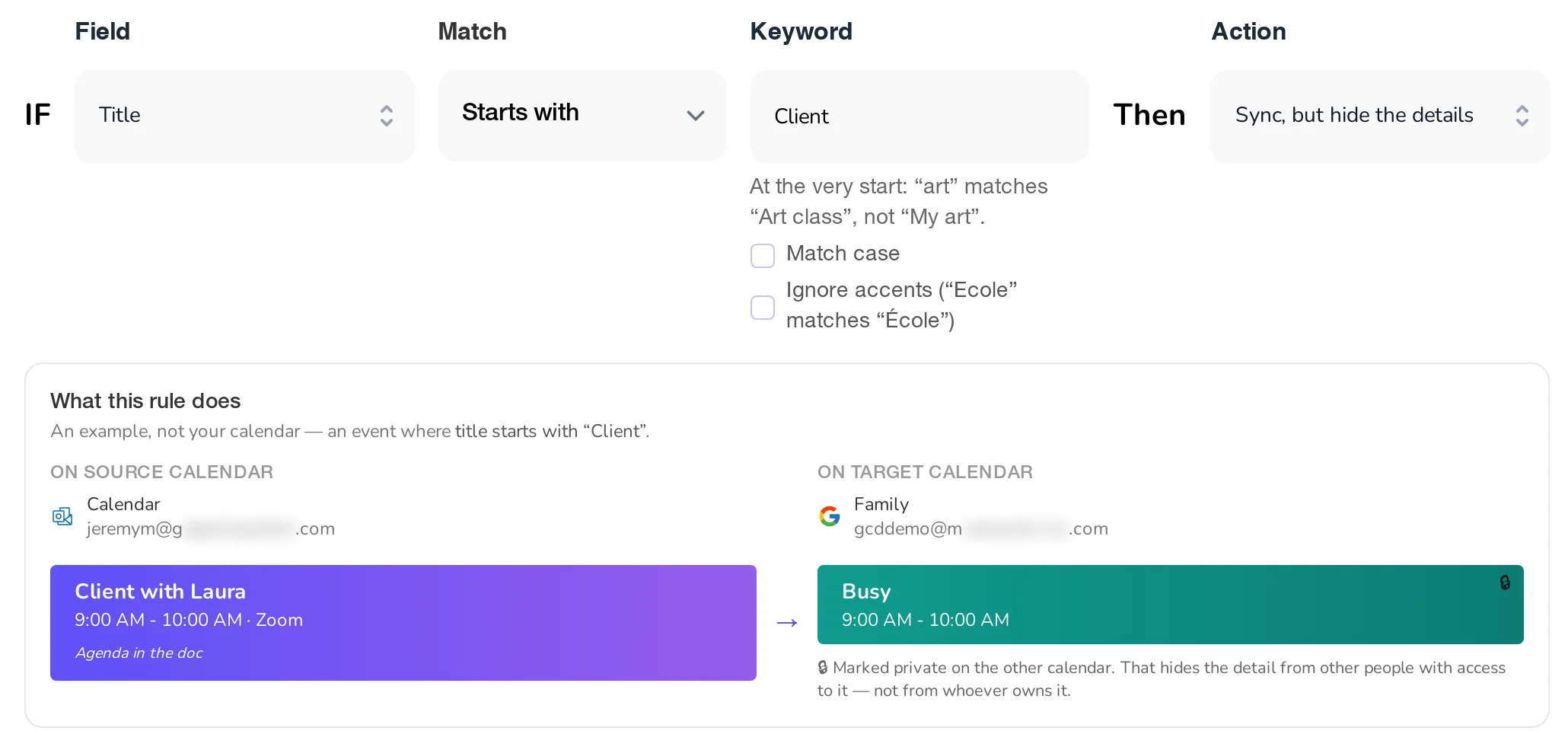
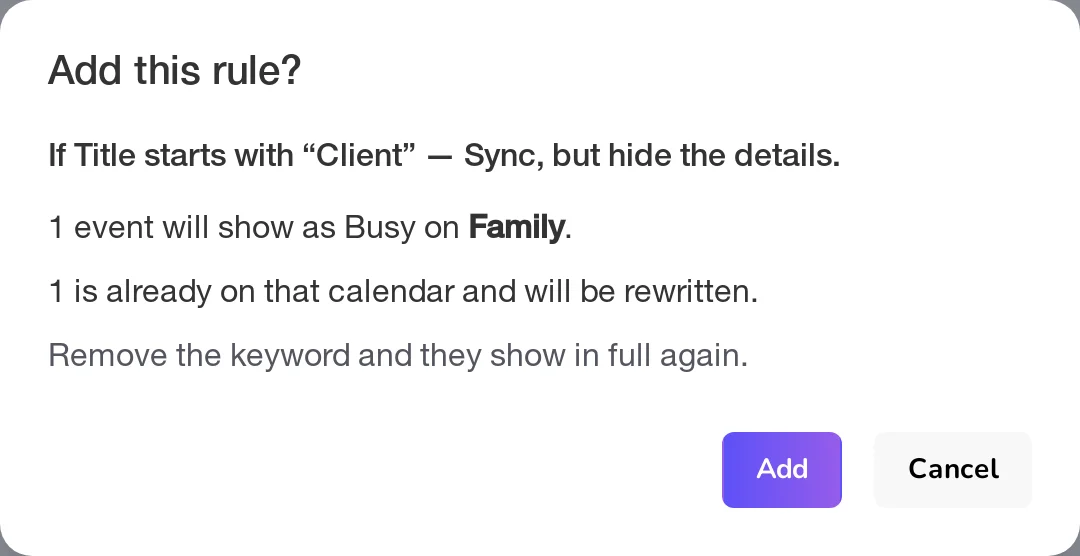
Delete the rule and those copies come back as they are now. This only reaches events within the dates the connection syncs; see what happens when I add or delete a rule keyword.
2. Editing an event moves it in or out of a rule
Rename "Lunch" to "Personal: lunch" and a Don't Sync rule on "Personal" removes its copy. Rename it back and the copy returns. This happens on the next sync of that connection, usually within minutes. One exception: renaming a single occurrence of a repeating Outlook event can take up to an hour to apply.
3. Don't Sync beats every other rule
If an event matches a Don't Sync rule and also a rule that would copy it differently, it isn't copied. That includes a rule that sends it to a different calendar, and a Sync it rule on a connection set to Only what matches: Don't Sync is asked first. GetCalendario tells you when one rule can never win against another:
- Before you save, when it can tell from the rules alone. That means two rules on the same field, such as two title rules where every title the new rule catches is caught first by the Don't Sync rule.
- After events sync, for rules on different fields. A title rule and a color rule can only be compared once real events have come through, so the note appears on the Sync Rules page a little later.
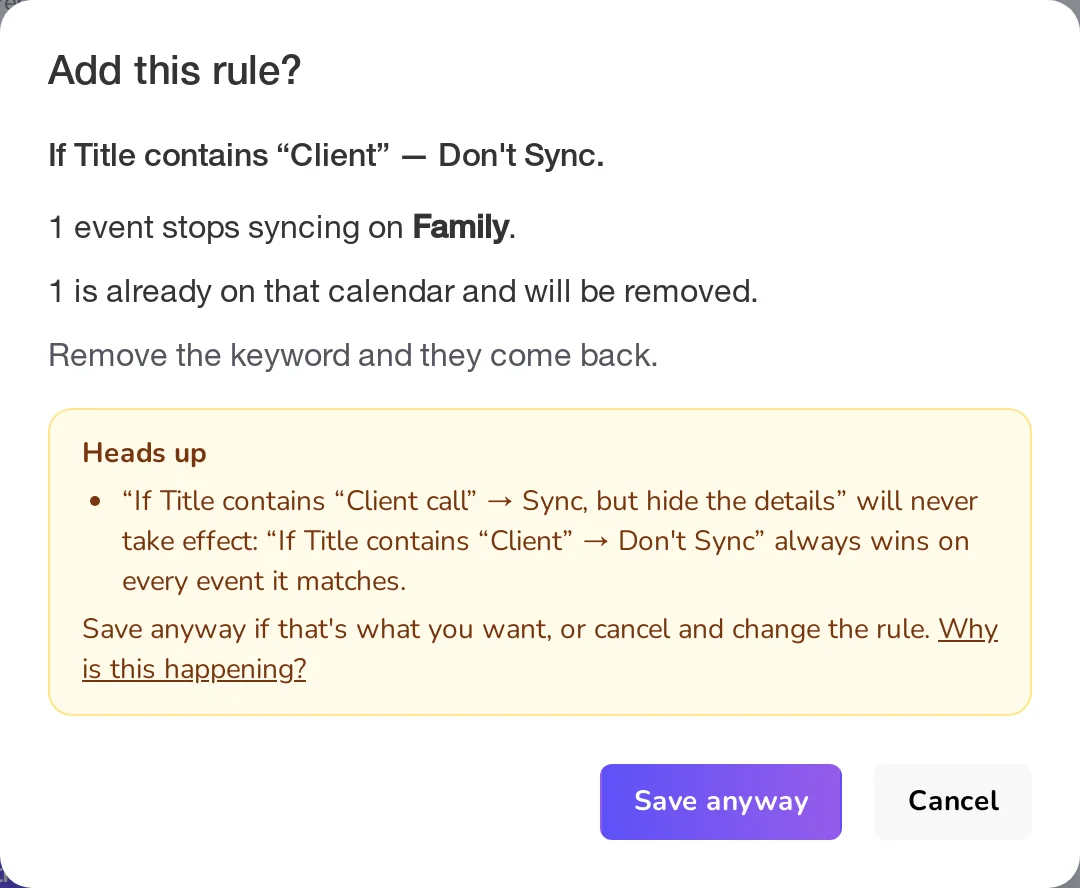
What to do about it is in why a sync rule says it "never takes effect".
4. A private event's copy is private, with no rule at all
An event marked private on its own calendar is copied as a private event. You don't need a rule for that, and no rule can make the copy public. Rules are for the other cases: making copies of ordinary events private, or keeping private events off the other calendar entirely. See how to keep private events private.
5. "Hide the details" already includes "mark it private"
If one rule hides an event's details and another marks it private, the copy is "Busy" and private. Neither rule is reported as losing, because a hidden copy is always private as well.
6. A repeating event is judged as a whole
A repeating event is copied as a series, so the series as a whole has to pass your rules.
- A weekly "Team walrus" with a Don't Sync rule on "walrus" isn't copied. Rename one week to "Team meeting" and that week still isn't copied: the series it belongs to is still kept off.
- The other way round works week by week. In a weekly "Team sync" that is copied, rename one week to "Team sync walrus" and only that week disappears from the copy.
To bring a repeating event across, change the series itself, or the rule.
7. Match modes do what their names say
Title, notes and location rules can match in four ways. The hint under the keyword box always shows an example.
| Match | "Plum" catches | but not |
|---|---|---|
| Contains | Plum jam, Sugarplum | |
| Contains the word | Plum jam | Sugarplum |
| Starts with | Plum jam | My plum jam |
| Is exactly | Plum | Plum jam |
Case is ignored unless you tick Match case. Tick Ignore accents and "creme" catches "Crème brûlée".
8. Rules that change the copy add up
A rule that adds a label and a rule that hides the details can both apply to one event: the copy reads "Busy" and still carries the label, so it stays easy to spot on the other calendar.