
Avoiding double-booking across client calendars
Updated 11 October 2026
You work with three clients, each of whom gave you access to a calendar on their own Google or Microsoft account, and none of those calendars knows the other two exist. You find out about a clash when two clients book you for the same afternoon, not before — because the only calendar that would have caught it is the one in your head.
A set of one-way connections from each client calendar into your own personal calendar puts every commitment in one place, so a new booking on any client's calendar shows up against everything else you've already got on.
The setup
You need one connection per client calendar, all pointed at the same destination:
- Client A's calendar → your personal calendar
- Client B's calendar → your personal calendar
- Client C's calendar → your personal calendar
Each connection is one-way and independent — there's no single setting that fans all three client calendars into your personal one at once, and each gets configured separately, including whether it copies full detail or just a placeholder.
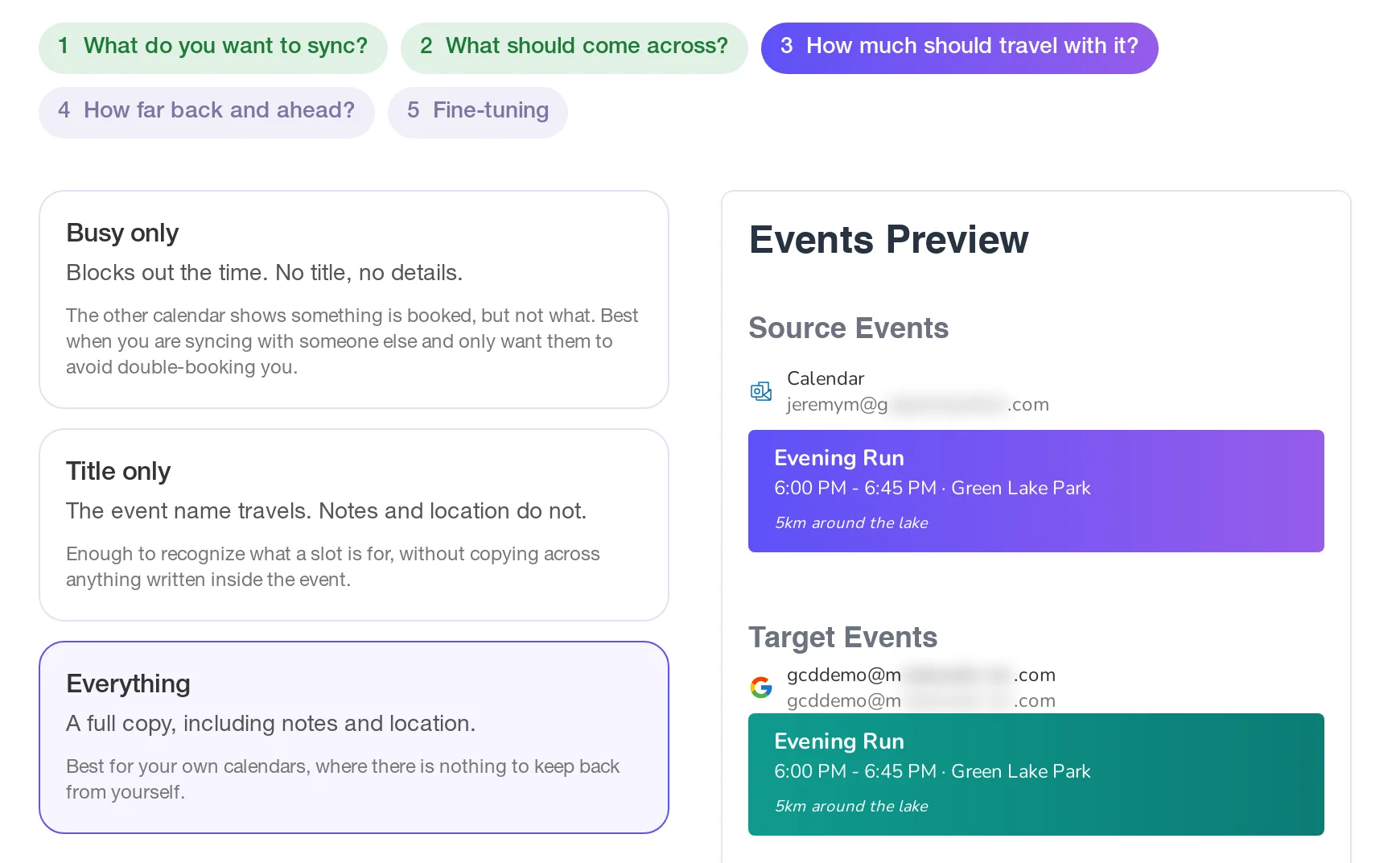
Detail level matters more here than in most setups, because you're often not the primary account holder on a client's calendar — you were invited into it. Whether you can even see full event details, or only placeholders, depends on what the client's connection is set to copy. If a client is comfortable with you seeing full titles and descriptions, that connection can be set to full detail; if not, a placeholder still blocks the time on your personal calendar without exposing what the meeting is about.
You choose this on the third step of creating a connection, How much should travel with it?:
None of this makes your personal calendar visible to any client unless you also build a connection going the other way — your personal calendar → a client's calendar — which is a separate connection you'd set up deliberately, not something that happens as a side effect of the client-to-you connections.
Keeping clients separate from each other
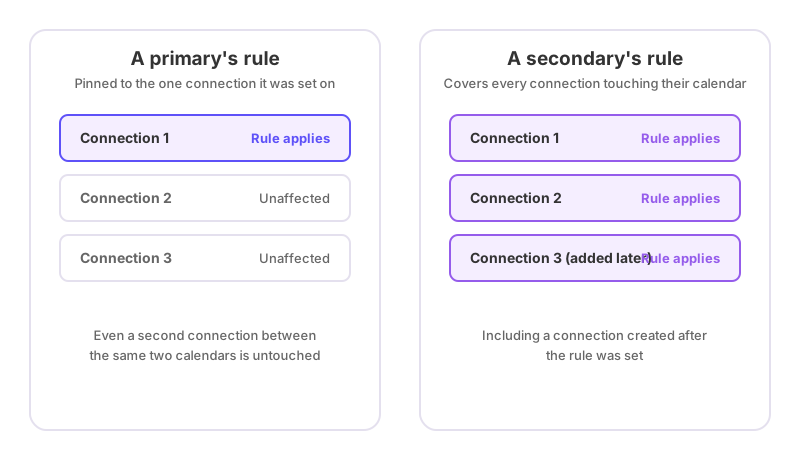
A rule on one client's connection has no bearing on another's. If Client A's contract requires that anything marked "Confidential" on their calendar never leaves it, a "Don't Sync" rule on the Client A → personal connection handles that — it won't affect what comes through from Client B or C, because rules are pinned to the one connection they're set on.
If you're the secondary on a client's connection — meaning the client set it up and you don't own it — you can still set a redact rule on your own personal calendar to hide the details of anything matching a keyword, but that rule then applies to every connection writing into your personal calendar, not just the one client's. It can hide details; it can't stop an event from syncing outright. Only the connection's owner — typically the client, if they set it up — can add a rule that drops an event from syncing completely. See how to stop certain events from syncing and how to hide event details but keep the time blocked for how those two differ.
What your personal calendar shows
Once all three connections are running, your personal calendar carries a copy of every qualifying event from each client, at whatever detail level and filtering each individual connection allows. A new meeting booked on Client B's calendar this afternoon shows up on your personal calendar within the normal sync cycle, so it's already accounted for by the time you next check your own calendar.
All of this is bounded by the plan's sync window — a number of days back and forward, set by the plan rather than per connection. A booking made far enough in the future to sit outside that window won't appear on your personal calendar until it moves inside it, which is worth remembering if a client books unusually far ahead.
Cancellations sync the same way, and silently: no client is notified, and no attendee is copied onto the synced copy, so a client cancelling a meeting just makes the corresponding block quietly disappear from your personal calendar.
If it looks wrong
If bookings from one client aren't showing up, check that specific connection rather than assuming a system-wide problem — with three independent connections, one can be paused or failing while the other two work fine. Why is my calendar not syncing covers the checks in order. If a booking is missing but recent, confirm it actually falls inside the sync window; see how far back and forward does calendar sync go. And if you need the reverse direction — clients seeing your general availability — that's a connection you'd build separately, following the same one-way-per-pair pattern described in how to set up two-way calendar sync.