
Keeping work and personal calendars in sync
Updated 3 September 2026
You get double-booked because your work calendar doesn't know about the dentist, and your personal calendar doesn't know about the 4pm you blocked for a release. Nobody double-books on purpose — it happens because the two calendars genuinely can't see each other, so anyone (including you) checking either one in isolation is checking half your day.
The fix isn't merging the calendars. It's two one-way connections that copy just enough information each way to stop the collisions, while keeping the details of one life out of the other.
The setup
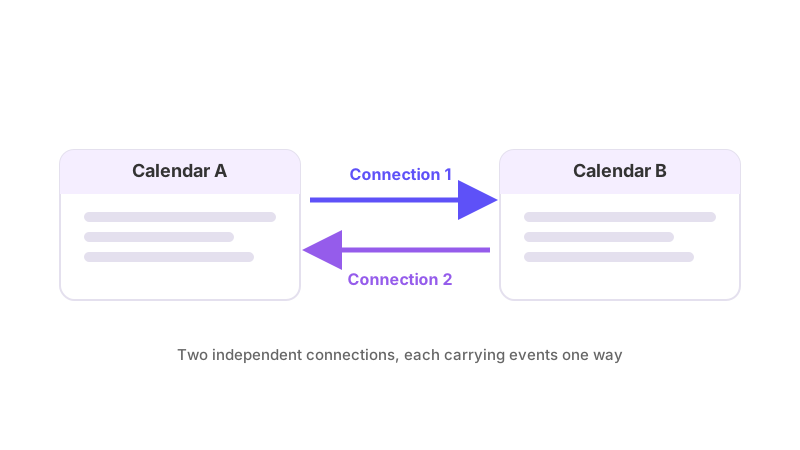
You need two connections, because a GetCalendario connection only ever moves events in one direction:
- Work calendar → personal calendar. Set this one to copy full details, or just a placeholder, depending on how much of your work day you want visible on your personal calendar. Most people pick placeholder — a blocked slot that says "Busy" rather than the name of the client you're meeting.
- Personal calendar → work calendar. The reverse connection, usually set to placeholder as well, so a dentist appointment shows up as blocked time on your work calendar without your team seeing where you are.
Each connection is configured separately — its own choice of full detail vs. placeholder, its own privacy setting, its own rules. Setting one up doesn't create the other, and there's no toggle that turns a single connection into a two-way sync. If you only build the first one, edits made on your personal calendar will never reach your work calendar, and you'll be back to double-booking from that side.
Keeping specific things off either calendar
A blanket copy of everything isn't always what you want. If you'd rather your personal calendar didn't show every recurring work standup, or your work calendar didn't show every personal appointment, a rule on the relevant connection can keep specific events off it entirely — matched by title, description, location, or whether the source event is marked private. A rule set to "Don't Sync" drops the event completely: no placeholder, nothing. That's different from a rule set to hide details, which still blocks the time but strips the title, description and location.
Because each connection is independent, a rule on the work-to-personal connection has no effect on the personal-to-work one. If you want the same kind of exclusion running both ways, you set it up on each connection separately.
What shows up on each side
Once both connections are running, your personal calendar shows every work event that matches the work-to-personal connection's rules — either with full details or as a placeholder, depending on how you configured it — and your work calendar shows the same for personal events, subject to whatever rules you put on that connection. Anyone looking at either calendar sees enough to know you're unavailable at that time; whether they see why depends entirely on the settings you chose for that particular connection.
Both connections only act on events inside your plan's sync window — a number of days back and forward, set by your plan. An event further out than that isn't touched by either connection until it moves inside the window.
Deletions travel the same way as everything else, and silently: nobody is copied onto a synced event, and every write GetCalendario sends to Google or Microsoft explicitly asks the provider not to notify anyone. So if a work meeting gets cancelled, the placeholder disappears from your personal calendar without an email going out about it.
If it looks wrong
Start by checking which of the two connections is actually responsible for what you're looking at — a problem with the work-to-personal direction won't explain a symptom that only makes sense the other way. Then check that connection's own settings: whether it's paused, what its detail level is set to, and whether a rule is matching (or failing to match) the event in question. Why is my calendar not syncing walks through the checks in order. If the issue is that an event you expected to see stripped down still shows full details, or vice versa, how to hide event details but keep the time blocked covers exactly what that rule does and doesn't change. For the full two-connection setup itself, see how to set up two-way calendar sync.