
Let a sitter or grandparent see the kids' week, no account needed
Updated 11 October 2026
Grandma picks up on Tuesdays, the sitter covers Thursday evenings, and both of them text to ask what's on. You could add them to your Google calendar, but that means they need a Google account and get to see everything in it.
A shared view is simpler. You choose which calendars it holds, here just the family calendar, and send it to their email address. They open a read-only calendar from the email. No account, no app, and nothing else of yours is reachable from it.
Family calendar → a shared view → the sitter's or grandparent's browser
Sharing needs the Basic plan or above on your side.
Set it up
-
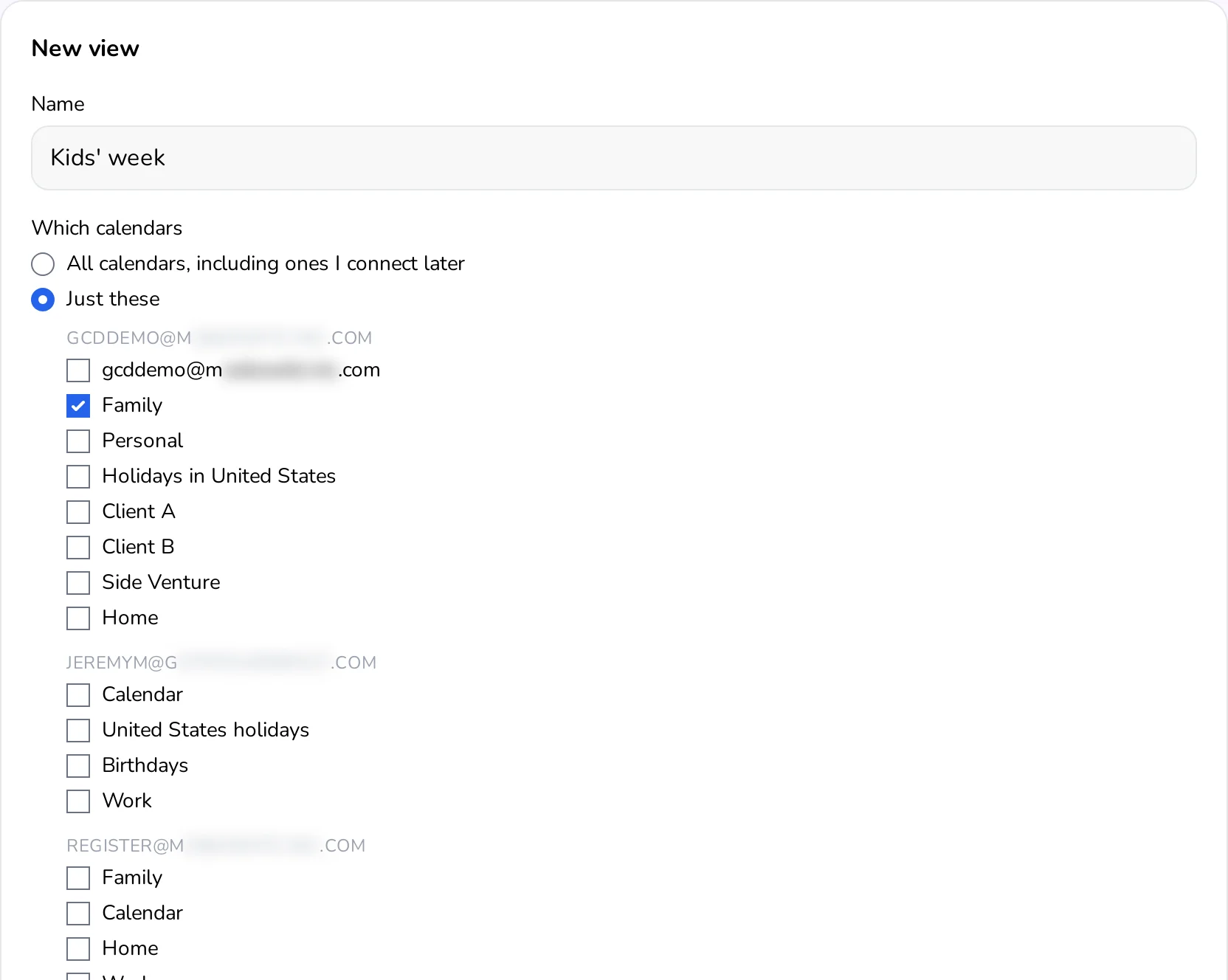
Make a view of just the family calendar. On the Calendar page, open Views & sharing and choose New view. Name it, choose Just these, and tick only the family calendar.
-
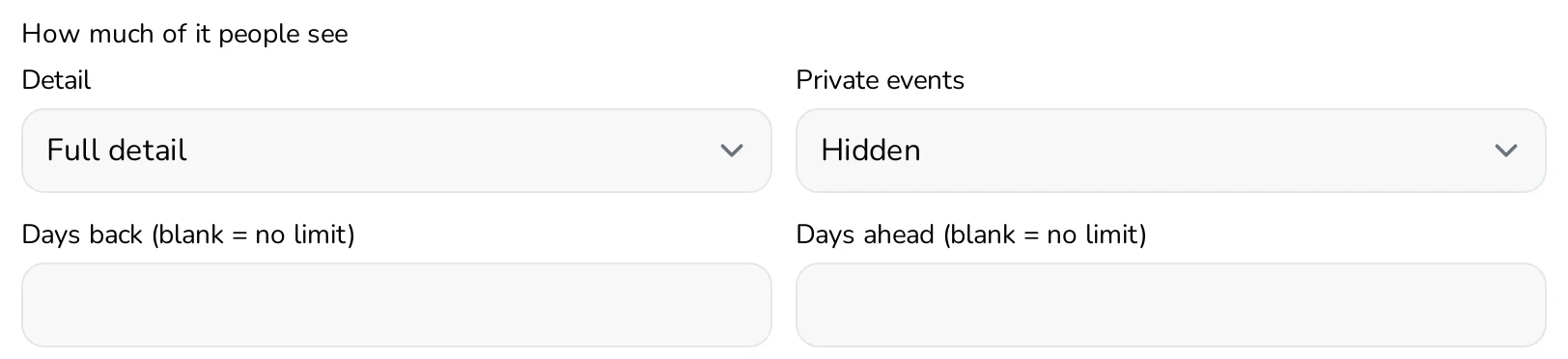
Choose how much they see. Choose Edit on the new view. Full detail shows titles and places, which is what a sitter needs. Set Private events to Hidden so anything you've marked private stays off it. To show only the coming fortnight, put 14 in Days ahead (date limits need Premium or above).
-
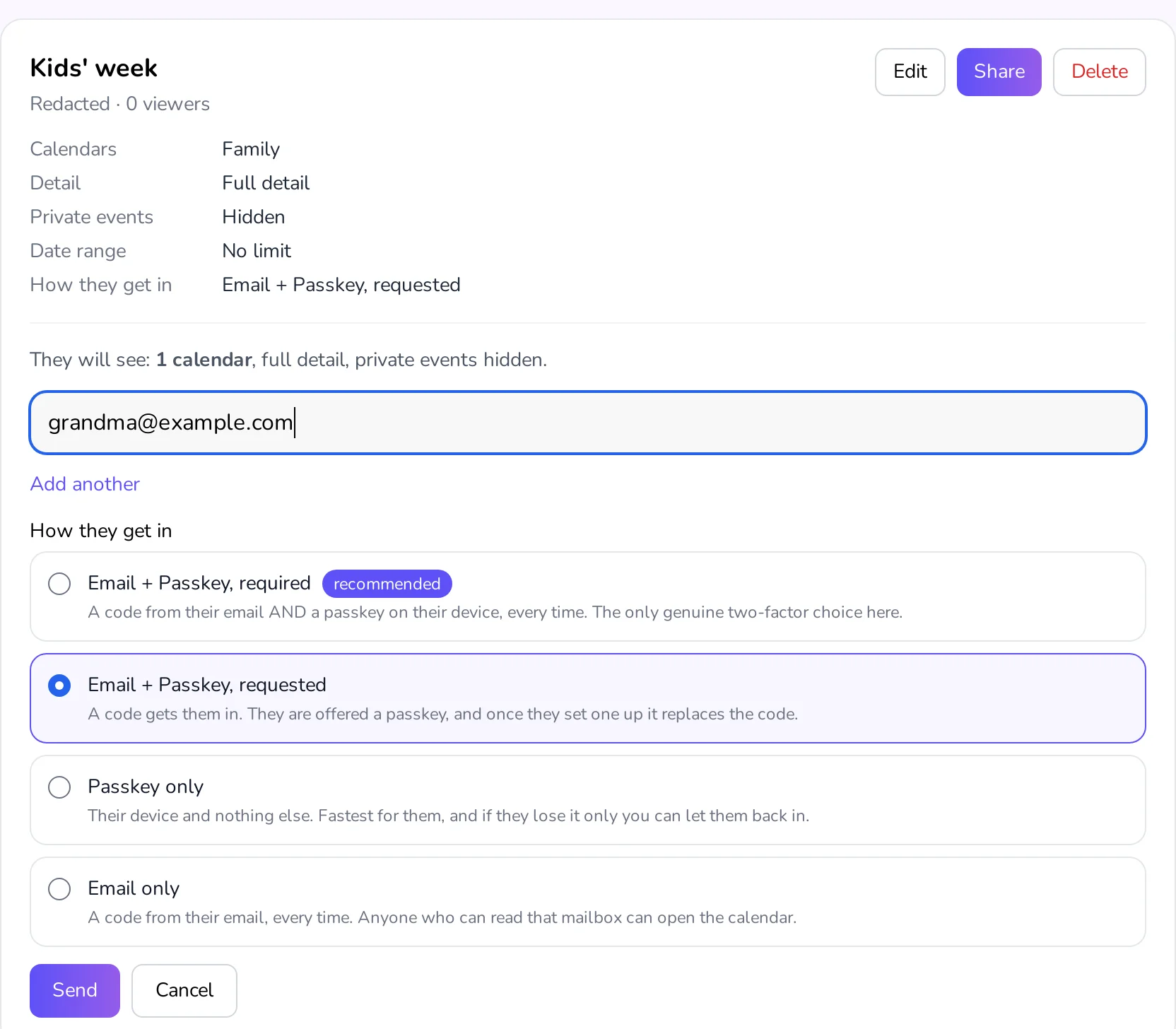
Share it. Choose Share, type their email address, and choose Add another for a second person. Under How they get in, "Email + Passkey, requested" suits most people: a code from their email gets them in, and they can switch to a passkey later. Then choose Send.
See what they'll see
On the Calendar page, pick the view under Showing and choose As a viewer sees it. This is the week exactly as your sitter or the grandparents will see it:
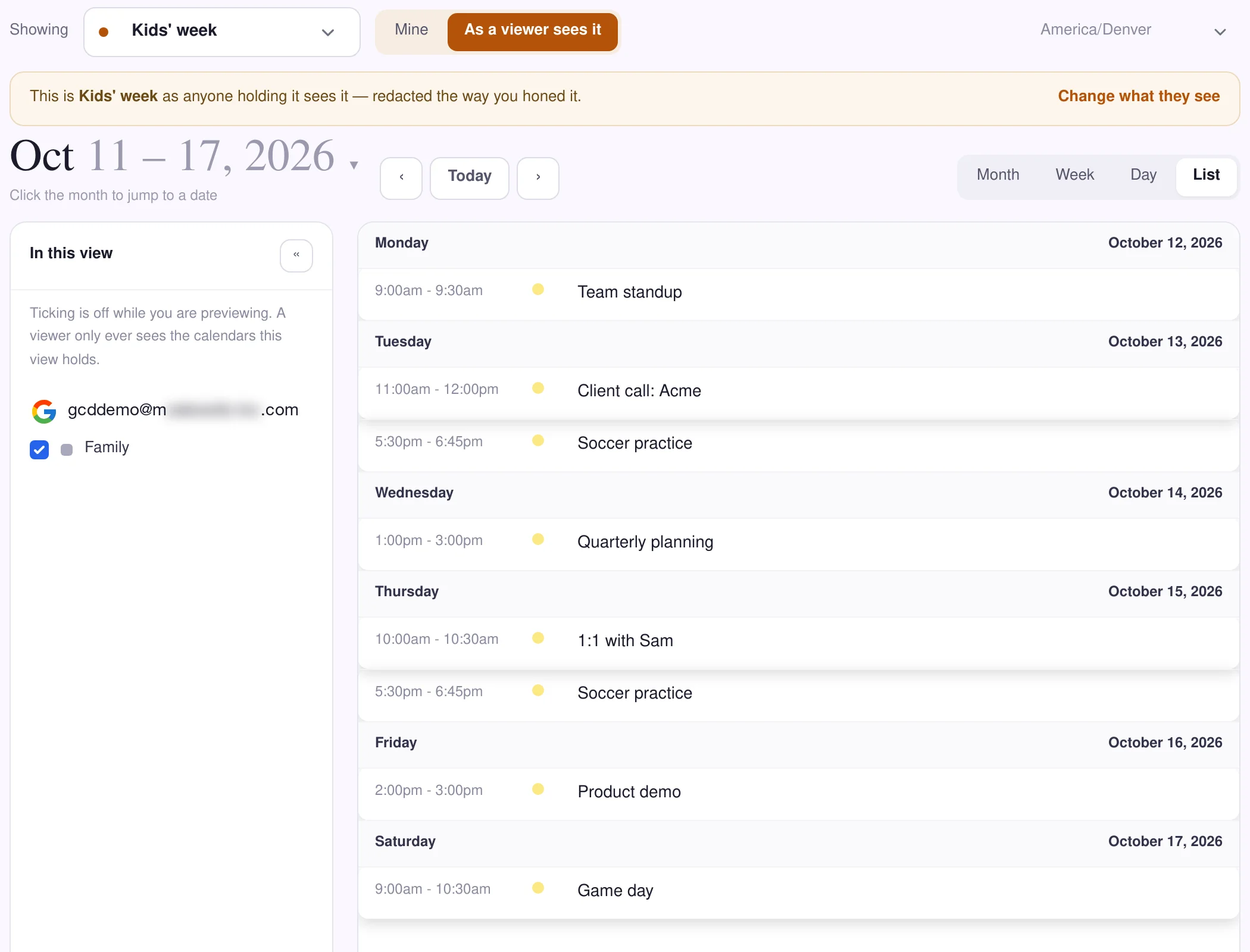
The family calendar above also carries a parent's work meetings. If that's more than a sitter needs, send only certain events to a separate kids' calendar and share that one instead.
Good to know
- They can look, not change. Viewers move between dates and change the time zone shown. They can't add, move or delete anything.
- It stays current. The view shows the family calendar as it is now, including the team schedule from a calendar feed.
- Stop any time. Stop on the view ends one person's access straight away. See how to stop sharing or reset access.
- More on the way in: what the person you invite does, and how strict to make it.