
How to sync Exchange Online with Google Calendar
Updated 3 September 2026
Exchange Online is the calendar and mail service behind Microsoft 365 — if your organization gave you a Microsoft work account, this is very likely what's actually holding your calendar. GetCalendario can connect that calendar directly to a Google Calendar, so events made in either place appear in the other without anyone copying them by hand.
What you need
- A GetCalendario account with an Exchange Online (Microsoft 365) account and a Google account both added.
- The ability to sign into each once, so GetCalendario can authorize against it.
- Awareness of your plan's sync window, since it decides which events a connection actually acts on.
GetCalendario connects to Exchange Online through the same Microsoft sign-in used for Outlook.com and Microsoft 365 generally — there's no separate setup for it. There's no support for an on-premises mail server; this is specifically the hosted Exchange Online service that comes with a Microsoft 365 subscription.
Connect both accounts
From the Accounts page, add the Microsoft account tied to your Exchange Online mailbox, then add the Google account. GetCalendario asks you to sign in and grant permission to read and write calendar events on each. Once both accounts appear on the page, their calendars are available to pick from when you build a connection.
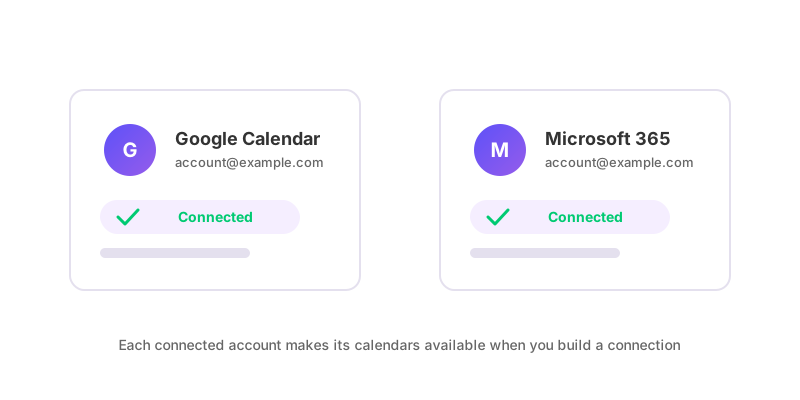
Create the connection
Go to Add Connection and pick the Exchange Online calendar as the source and the Google calendar as the destination, or the other way round. Choose whether to copy full event details or just a placeholder that blocks the time without exposing the title or notes — a common choice when one of the two calendars is visible to other people.
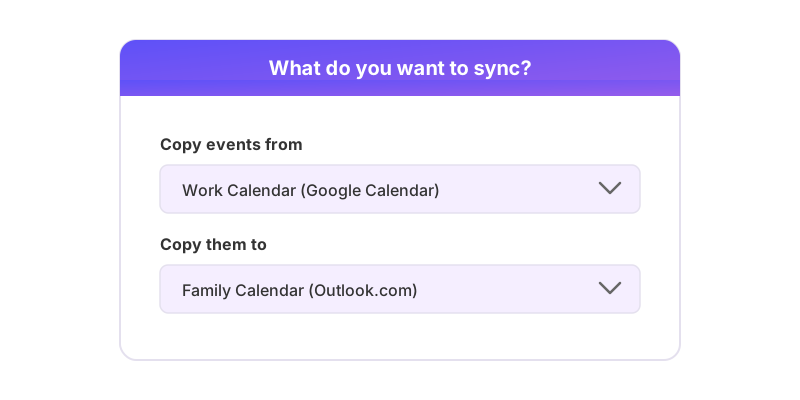
Before it starts syncing anything real, the connection goes through Test Flight: GetCalendario writes a trial event to the destination calendar, confirms it landed, and removes it. If Test Flight fails, the connection won't start syncing until the underlying permission problem is fixed.
Make it two-way
A connection only copies one direction. To keep both calendars current — Exchange Online changes reflected on Google, and Google changes reflected on Exchange Online — you need two connections, each pointed the opposite way. They don't share filters or settings, so a rule set on one has no effect on the other.
How to set up two-way calendar sync covers the reasoning in full, including the mistakes people make assuming a single connection handles both directions.
What syncs, and what does not
Once a connection (or the pair of them) is active, new and changed events inside your plan's sync window sync automatically. Events outside that window — further back or further ahead than the plan allows — are not evaluated until the window reaches them; nothing catches up retroactively beyond it.
Deletions sync too, and silently — GetCalendario never adds attendees to a synced copy, so nobody on the original invite is notified just because a copy appeared or was removed on the other calendar.
If an event you expect to see isn't showing up, it's worth checking whether a filter is set on that connection to drop it entirely or just strip its details, since filters are per-connection rather than per-calendar. Why is my calendar not syncing runs through this and the other common causes in the order to check them.