
How to sync two Google Calendars
Updated 3 September 2026
Plenty of people run two Google accounts — a work one and a personal one, or one for a side project — and end up checking both to see whether they're free. GetCalendario connects two Google calendars directly, so an event on one shows up on the other automatically, whether that's the full event or just the time blocked out.
What you need
- A GetCalendario account with both Google accounts added. They're two separate Google sign-ins, even though they're the same provider — GetCalendario treats them as two independent calendars to connect.
- Access to sign into both accounts once, to authorize each one.
- An idea of your plan's sync window, which decides how far back and forward a connection actually looks (more on that below).
Connect both accounts
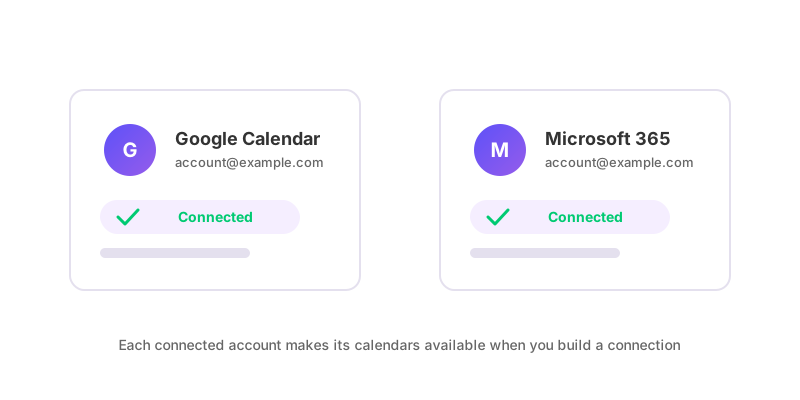
On the Accounts page, add the first Google account, then add the second. Because both use Google sign-in, it's worth double-checking you're authorizing the account you mean to on each pass — it's easy to get signed back into the one you just added. Once both are listed, every calendar under each account becomes available when you set up a connection.
Create the connection
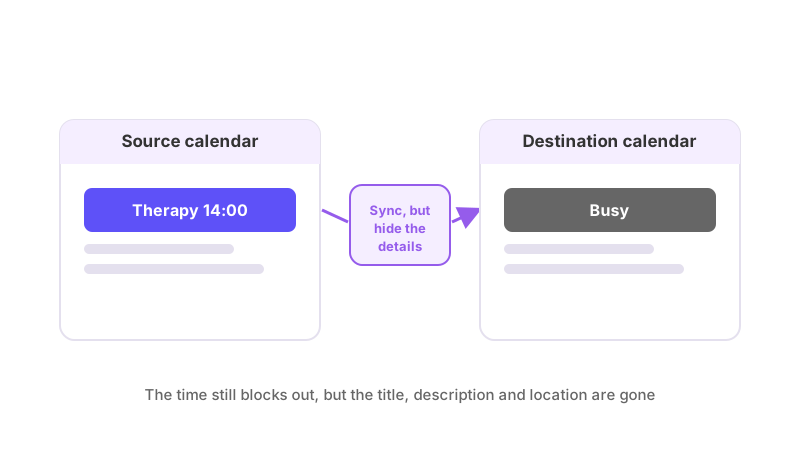
Go to Add Connection and pick a source calendar from one Google account and a destination calendar from the other. A connection is one-way, so this copies events from the source to the destination only. You can choose to copy full event details, or to copy only a placeholder — useful if you just want your personal calendar to show "busy" during work hours rather than the actual meeting title.
You can also override the title and description on the copied events, so instead of leaking what a meeting is about, the other calendar just shows something like "Busy" or "Work event."
Before it goes live, the connection runs Test Flight — GetCalendario writes a trial event to the destination calendar, confirms it arrived, then removes it. That confirms the connection can actually write to that calendar before any of your real events are involved.
Make it two-way
A single connection only copies one direction. If you want your work calendar's events to show up on your personal one, and your personal calendar's events to show up on your work one, that's two connections: one from account A to account B, and a second, separate one, from B back to A. They don't share settings — a filter or title override on one has no bearing on the other.
See how to set up two-way calendar sync for the general reasoning behind that, including the mistakes people make when they assume one connection covers both directions.
What syncs, and what does not
Once the connection (or pair of connections) is running, new and changed events inside your plan's sync window sync automatically. Anything older or further out than that window isn't touched — it will start syncing once it moves inside the window, but nothing retroactively catches up beyond it.
Deletions carry across too, and do so silently: nobody on the guest list is notified because a copy appeared or disappeared, since attendees are never added to the synced copy in the first place.
If you've set a filter — to stop an event syncing at all, or just to hide its details while keeping the time blocked — it applies only to the connection it's attached to. Two connections between the same pair of calendars can have completely different filters. If something isn't syncing the way you expect, why is my calendar not syncing walks through the most common reasons in order.