
Nudges and Auto-Nudge
Updated 18 October 2026
A nudge is a short email to someone on your team about one problem they can fix: they haven't accepted the invitation, haven't connected a calendar, nothing has synced yet, a sync broke, or they stopped using GetCalendario. You can send one by hand from the Engagement tab, or let Auto-Nudge send them on a schedule you choose.
Sending nudges, skipping them and changing the settings needs the Nudge members ability. The Owner has it, and Admins have it from the start. See Team groups and permissions. The states themselves are explained in Team engagement: who's using it.
Nudge someone by hand
- Open People & Team, then Team, then Engagement, then People.
- Pick Needs a nudge, or any other chip, to find the person.
- Click Nudge and their first name (for an invitation, Resend invite). The button changes to "Nudge sent just now."
The same buttons are in the person's panel, which opens when you click their name. Someone who can invite people, but can't nudge members, can still resend an invitation here, as on the Invitations tab.
A nudge isn't sent, and the screen says why, when:
- the person has turned these emails off: the row says "Has turned off these emails"
- they have already had three emails from GetCalendario today: "Try again tomorrow"
- they were nudged a moment ago, or an invitation was reminded in the last 3 days (the row says "Reminded" and the date)
- the team's syncing is paused because its bill is unpaid, or the team is being closed
- it's you: nobody can nudge themselves
Nobody is nudged about something they can't fix. People whose connections the team paused, and people who paused everything themselves, have no Nudge button.
What the member receives
Each problem has its own email, written for that problem, with one button that fixes it:
| Problem | Subject | Button |
|---|---|---|
| No calendar connected | Connect your calendar to finish joining team | Connect a calendar |
| Connected, nothing synced | Your calendar is connected, but nothing has synced yet | Finish setting up |
| Sync broken | Your Google calendar stopped syncing on date | Reconnect Google, Outlook or Apple |
| Stopped using it | Nothing has synced for you in two weeks | Open GetCalendario |
A broken calendar feed gets "Your calendar feed stopped working" and Check the feed. A removed calendar gets "One of your synced calendars was removed". If the account that broke belongs to one of the member's secondaries, the email names that person and says they need to sign in again. An invitation that hasn't been accepted gets the invitation again, marked as a reminder.
The email comes from "Your name via GetCalendario". Its footer says it was sent on behalf of you, the team's Owner or an Admin, and that replying reaches you: replies go to the person who sent it, so "I'm away until November" lands with someone who can act on it. The member can turn these emails off: they are Nudges from your team, in the Teams group of Settings → Email & notifications, set to Right away or Off. A nudge they turned off still shows in their message center. See Your message center and email notifications.
Your copy
By default you get a blind copy (BCC) of every nudge sent in your name, with "Copy:" in front of the subject and a line saying who you sent it to and when. Report & nudge settings can change that to CC me (they'll see I'm copied) or Don't copy me. Automatic nudges are sent in the Owner's name, so the Owner gets those copies. Invitation reminders come from GetCalendario itself and are not copied.
The Nudges tab
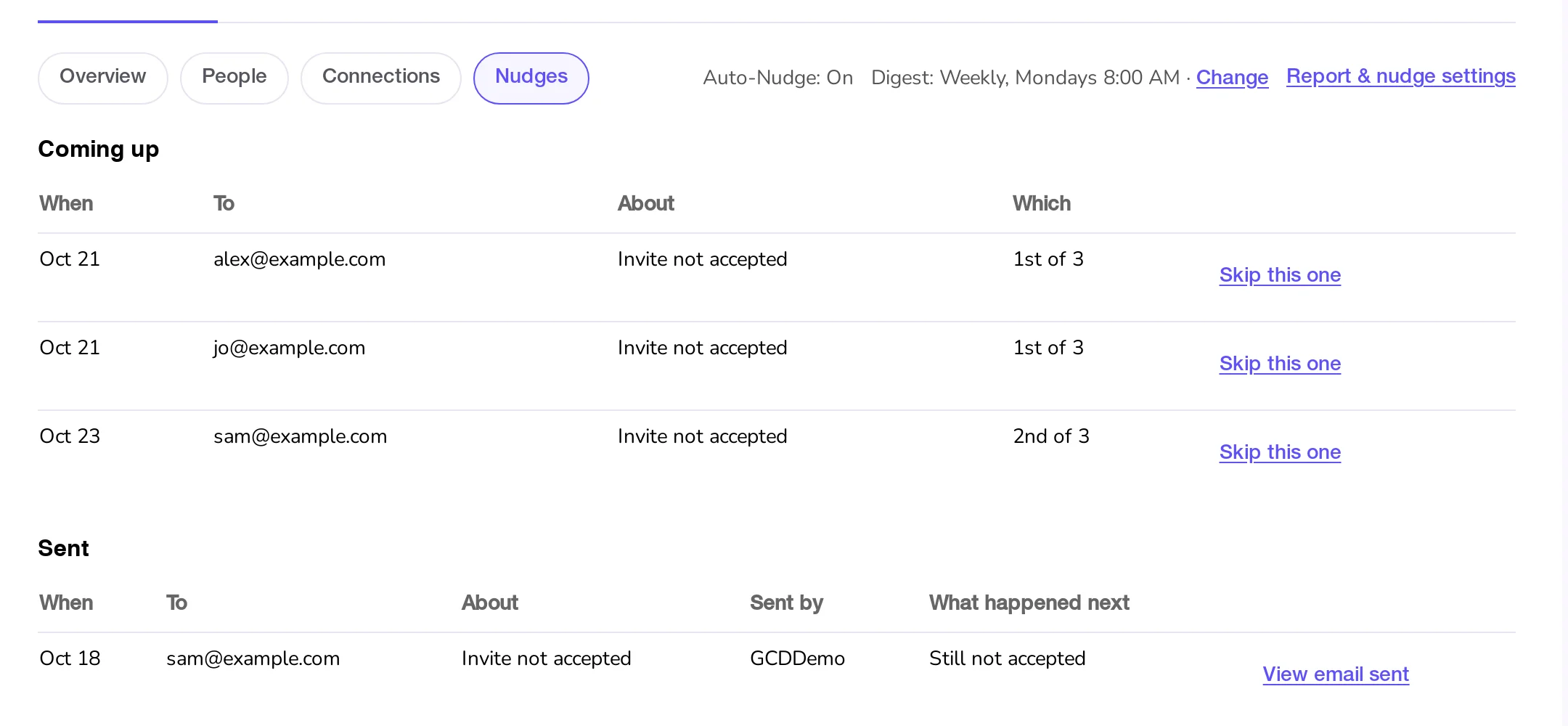
Coming up lists the automatic nudges and invitation reminders scheduled for the next 7 days: when, to whom, about what, and which one it is ("2nd of 3"). Skip this one cancels that one email; the next comes one repeat later and the screen says when.
Sent lists every nudge from the last 12 months: when, to whom, about what, who sent it (a person, or "Auto-Nudge (2nd of 3)"), and What happened next, such as "Fixed the same day", "Accepted after 2 days", "Still not accepted" or "Left the team".
View email sent
View email sent shows the email exactly as it was delivered: from, to, who was copied, the reply-to address, when it was sent, the subject and the email itself. Personal links in it, such as the member's own invitation link or unsubscribe link, are removed from this copy, and the page says so.
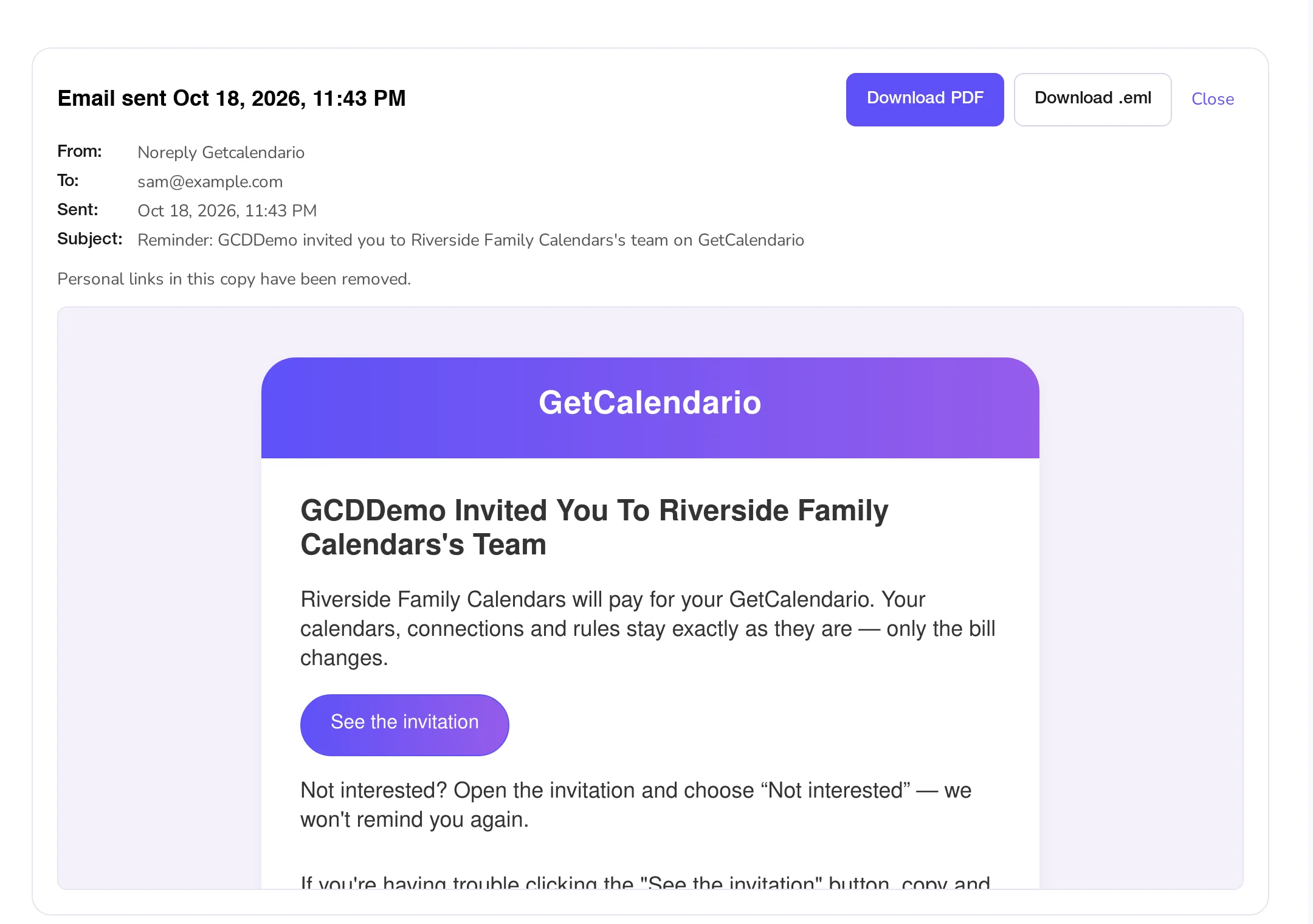
Download PDF saves it as a PDF. Download .eml saves it as an email file you can open in your mail app or forward. Invitations sent because the team claimed a domain are listed without the email, because the team doesn't know who they went to.
Auto-Nudge
Auto-Nudge sends the nudges for you. It is off until someone turns it on: GetCalendario doesn't email members on your behalf until you have seen what it would send. A new team's Owner lands on Keep an eye on how the team is doing right after creating the team. Skip for now leaves Auto-Nudge off, and Home shows a Turn on Auto-Nudge card until you decide. Later, open Engagement and click Report & nudge settings.
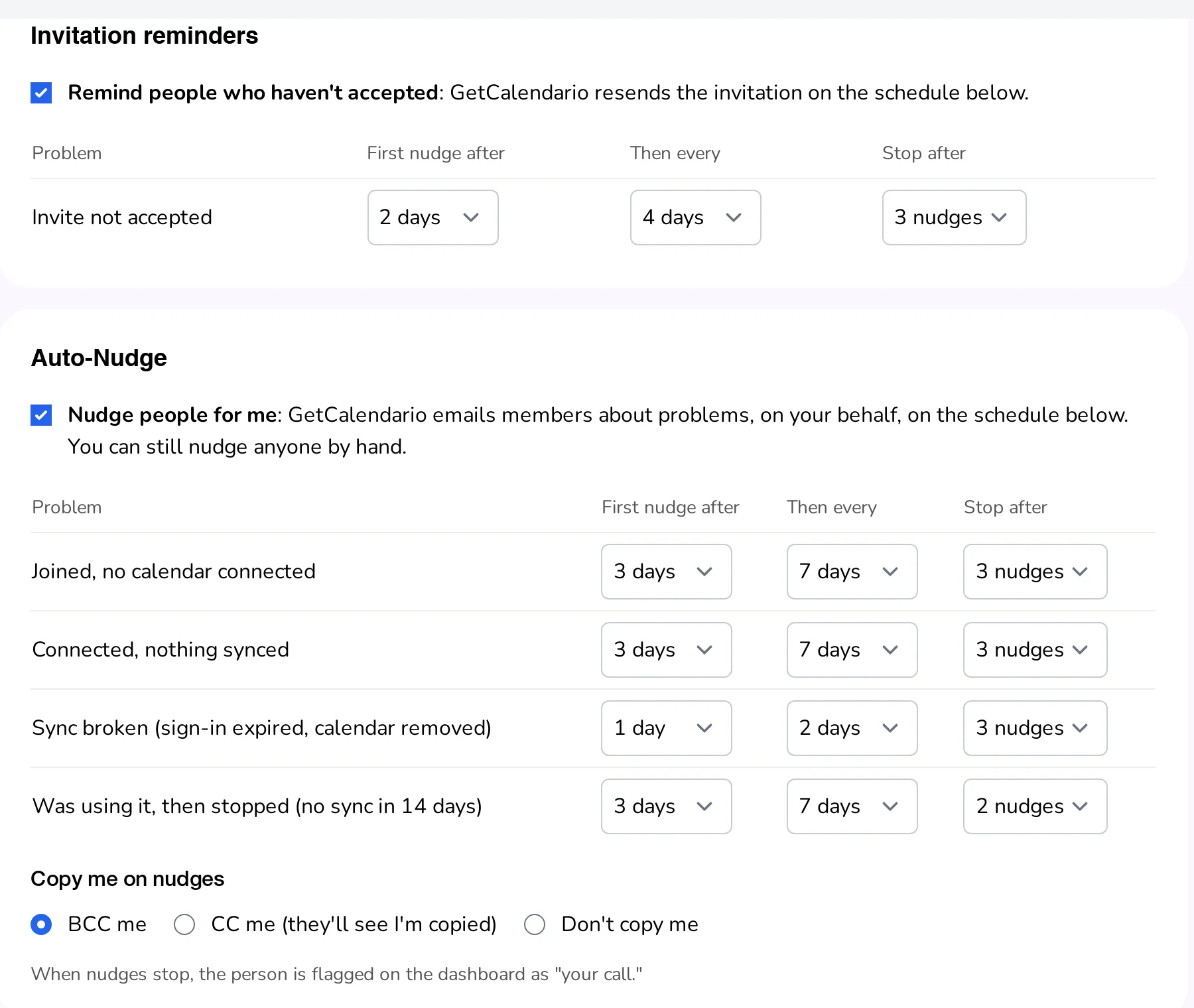
Tick Nudge people for me, check the schedule, and click Save. Each problem has its own row:
| Problem | First nudge after | Then every | Stop after |
|---|---|---|---|
| Invite not accepted | 2 days | 4 days | 3 nudges |
| Joined, no calendar connected | 3 days | 7 days | 3 nudges |
| Connected, nothing synced | 3 days | 7 days | 3 nudges |
| Sync broken | 1 day | 2 days | 3 nudges |
| Was using it, then stopped | 3 days | 7 days | 2 nudges |
Every number can be changed: the first nudge after 1 to 14 days, then every 1 to 30 days (at least 3 for invitations), stopping after 1 to 5. Below the table, a sample of each email shows it with your team's name and yours.
Automatic nudges go out on weekdays between 8 and 9 in the morning, in the member's own time zone (for an invitation, the inviter's). They are sent in the Owner's name, and Auto-Nudge never writes to the Owner.
One problem, one run of nudges
A run starts when someone runs into a problem and ends when they are out of it. The count and the stop belong to that run. If Priya fixes her sync and it breaks again a month later, she starts again at the first nudge.
Auto-Nudge stops early when the problem is fixed, the person leaves or is removed, the invitation is withdrawn, declined or expires, or the person has turned these emails off.
A nudge you send by hand counts as one of the run's nudges and restarts the wait for the next one. You can still nudge by hand after Auto-Nudge has stopped.
Needs your decision
When Auto-Nudge has sent every nudge in a run and the problem is still there, it stops and leaves the rest to you. The person is listed under Needs your decision on the Overview, with the Auto-Nudge stopped chip on People, "Auto-Nudge stopped, your call from here" in their row, and in your digest. You might talk to them, nudge them once more by hand, or remove them from the team.
Invitation reminders follow the team's schedule
Reminders to people who haven't accepted an invitation use the Invite not accepted row, with their own switch, Remind people who haven't accepted, which is on unless you turn it off. With the defaults that is 2, 6 and 10 days after the invitation, on a weekday morning in the inviter's time zone. Reminders don't count against the team's daily invitation limit, so they never stop you sending a real invitation. See How to invite someone to your team.
What to know
- Every nudge is in the team's activity log: "Dana Ruiz nudged Lee Chen: nothing synced." or "Auto-Nudge nudged …". Changes to the settings are logged too. See The team activity log.
- Members agree, when they join, that the Owner and Admins may email them when something isn't working. See What a team can and cannot see.