
Your message center and the emails GetCalendario sends
Updated 18 October 2026
Everything GetCalendario sends you is also kept in your message center, so you can find it again even if the email got lost, landed in spam, or you turned that kind of email off.
The bell and the message center
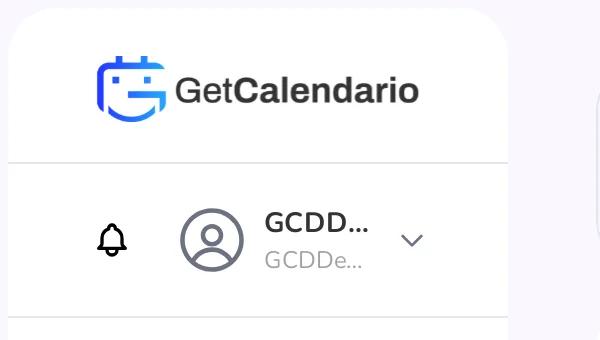
The bell sits in the sidebar, next to your name; on a phone it is at the top right. A number on it means you have unread messages. Open it to reach the Messages page, which lists what we have sent you, newest first, important ones marked. Open a message to read it. Mark all as read clears the number. Until we have sent you anything, the page says Nothing yet.
We keep each message for 12 months. Messages for a kind of email you turned off are still listed there, they just don't arrive in your inbox.

One-time sign-in codes and sign-in links are never listed. They are only good for a few minutes, and a code sitting in a list is a risk.
On Home
When you have unread messages, Home shows a card, such as "You have 2 unread messages", with the newest few titles, important ones first. With nothing unread there is no card. View in message center takes you to the full list.
Why you got an email
Every email ends with a line saying why it reached you, such as "Why you got this: it is about paying for GetCalendario", followed by Change your notification settings. The link opens a short page for that group's emails, which works without signing in. It also links to all your email settings.
Emails come in groups: Sign-in & security, Billing, Sync problems, Backups, Plan & free time, Teams, and Sharing.
Choosing which emails you get
Go to Settings → Email & notifications (Alerts on a phone), the second tab. It opens with Always sent: the sign-in and security emails you can't turn off. Under Account emails, each group (Billing, Sync problems, Backups, Plan & free time, Teams and Sharing) is set to Right away, Daily summary, Weekly summary or Off.
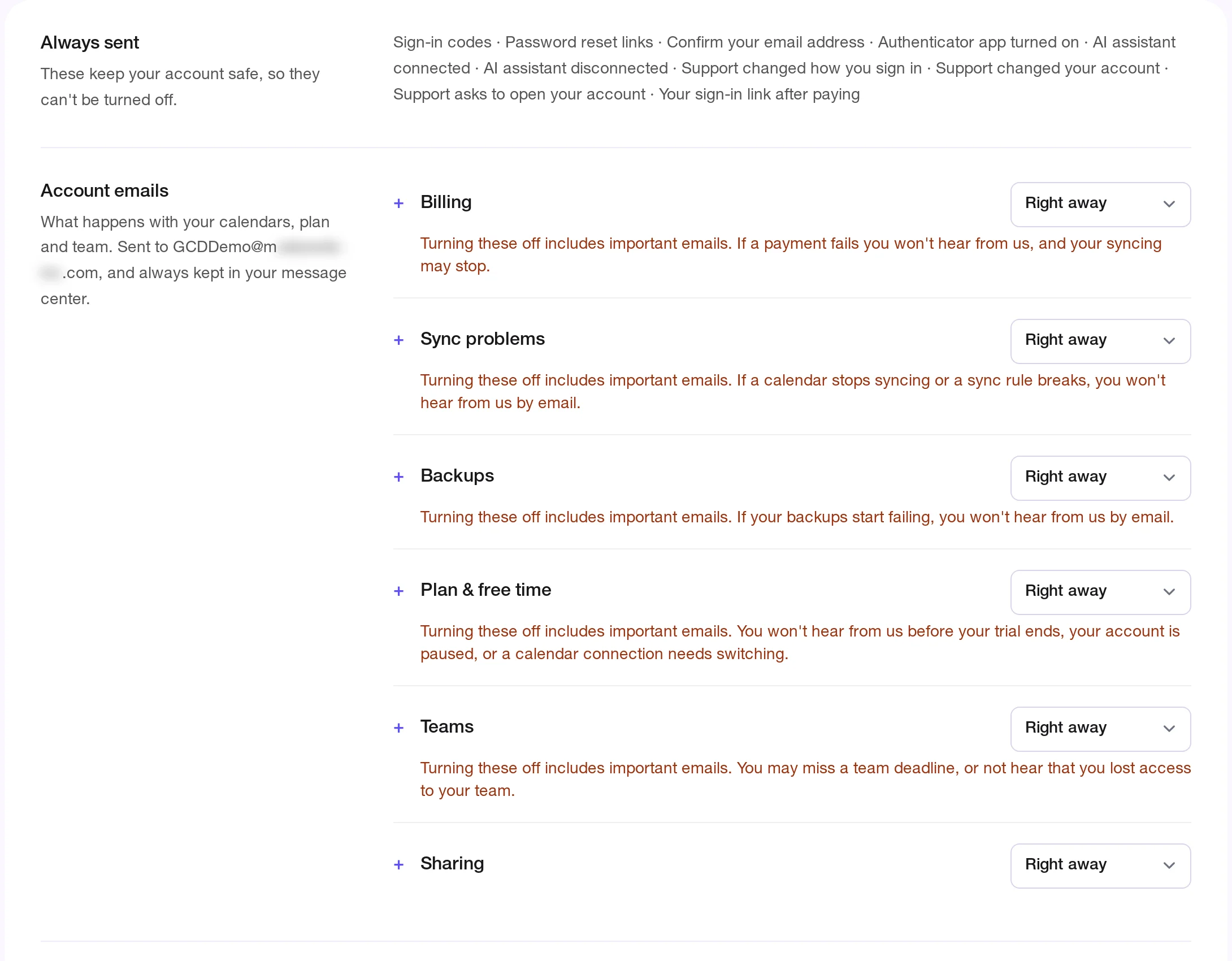
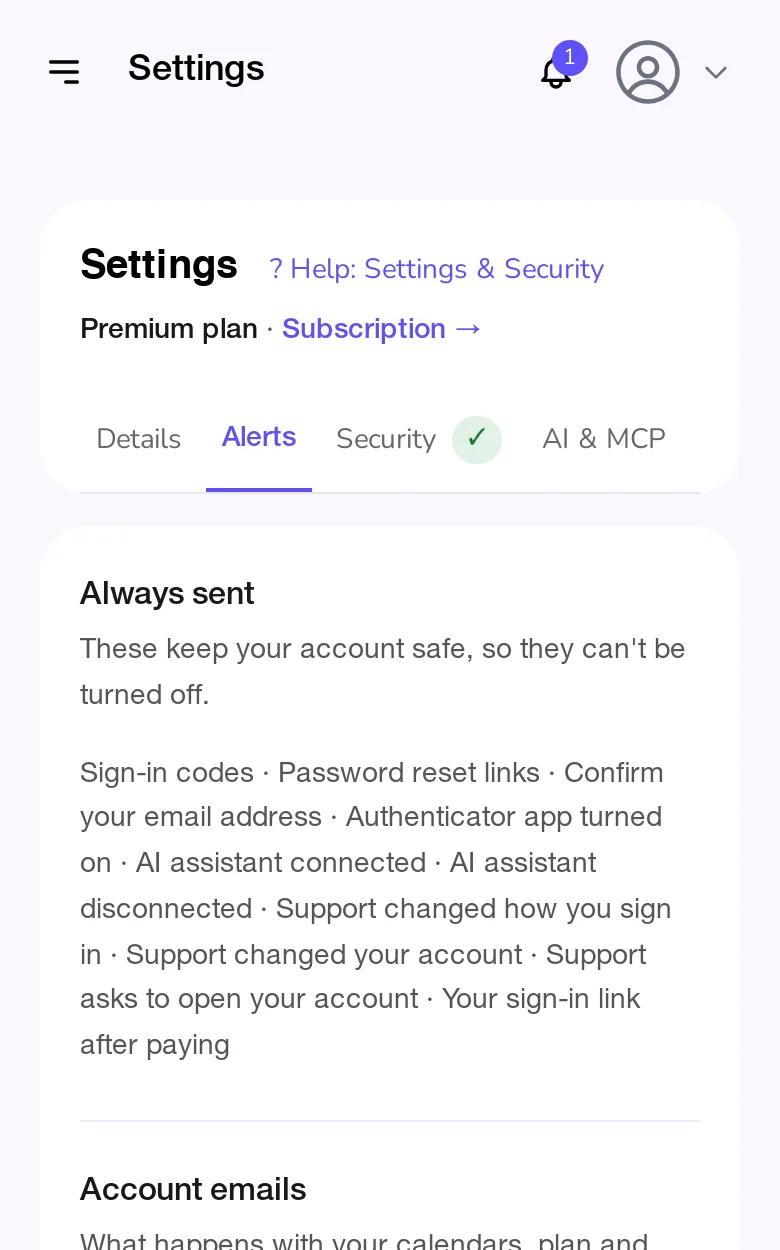
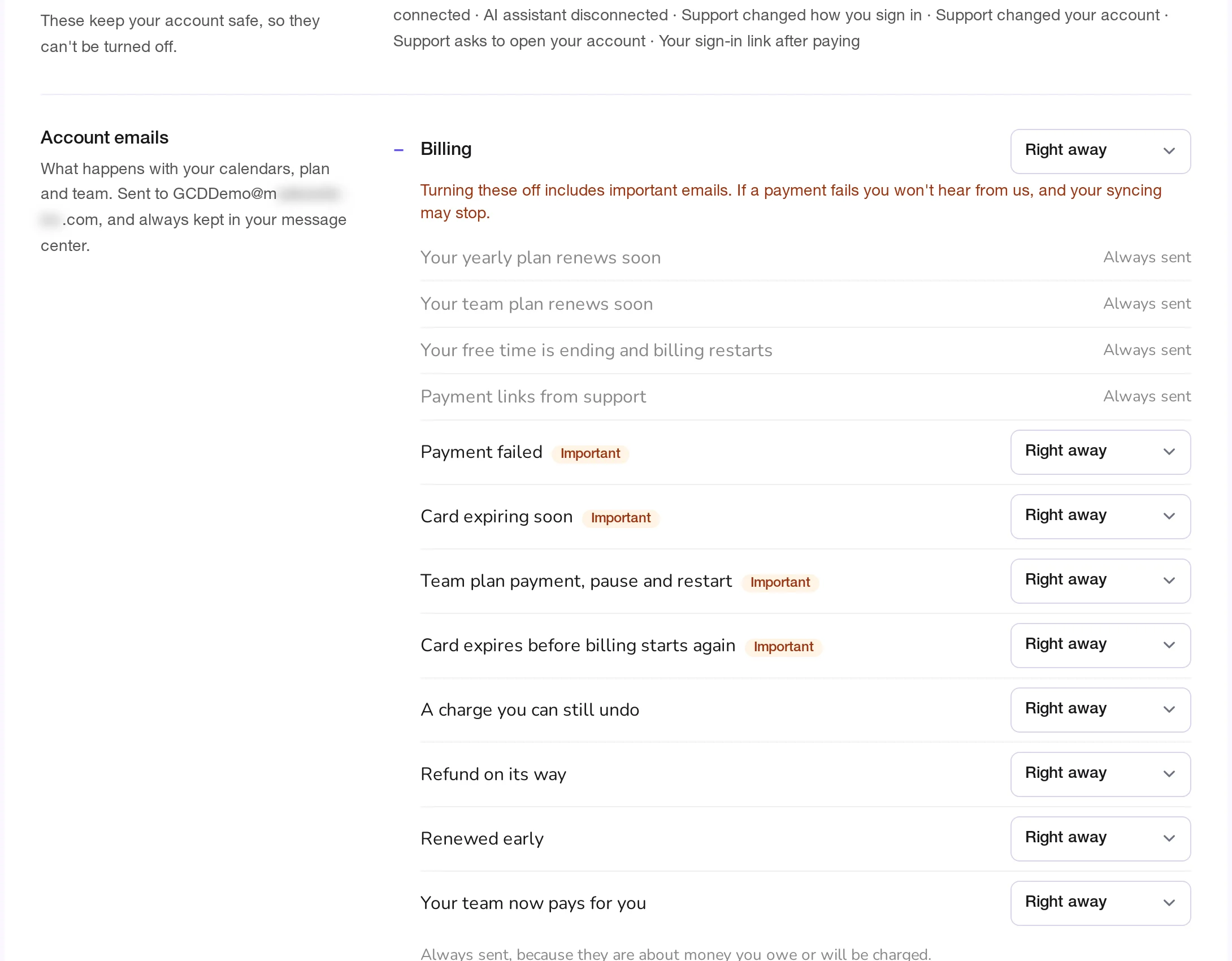
- Single emails: press a group's name to see the emails inside it, and set any one of them on its own. A group where you turned some emails off reads Some off. A group where some come right away and some in a summary reads Mixed. Setting the whole group to Off replaces the single choices inside it.
- Important emails are marked. These are the ones where silence could cost you something, and the warning under the group says what you would miss, such as "If a payment fails you won't hear from us, and your syncing may stop." Turning a group off includes its important emails. To keep one, open the group and set it back to Right away.
- Receipts are under Billing, if you pay for your own plan. They used to be a box on the Receipts page, and your choice there carried over: if you pay monthly and never ticked it, receipts start Off. Every receipt is on the Receipts page either way. A team plan's receipts are still set with the box on the Receipts page.
- Product news and tips ("News from Syncromate") is at the bottom of the same tab. It is separate from account emails: unsubscribing from one never stops the other.
- Teams holds the emails about a team you are on or run. Three of them are about team engagement:
- Nudges from your team: emails the team's Owner or an Admin, or Auto-Nudge, sends you when something isn't working. They are only ever Right away or Off, so the person who sent one can be sure what you received. See Nudges and Auto-Nudge.
- Team engagement digest: if you can see your team's engagement. Also Right away or Off; Change how often next to it sets your own schedule (daily, twice a week, weekly, or only when something needs your decision). Off stops it whatever the schedule. See The team engagement digest.
- Copies of nudges you sent: always sent, if you nudge people and the team copies you.
Whatever you turn off still shows in your message center.
Daily and weekly summaries
Set a group, or a single email, to Daily summary or Weekly summary, and those emails stop arriving one by one. Instead you get one email listing everything since your last summary, each line opening it in GetCalendario. If nothing came in, no summary is sent.
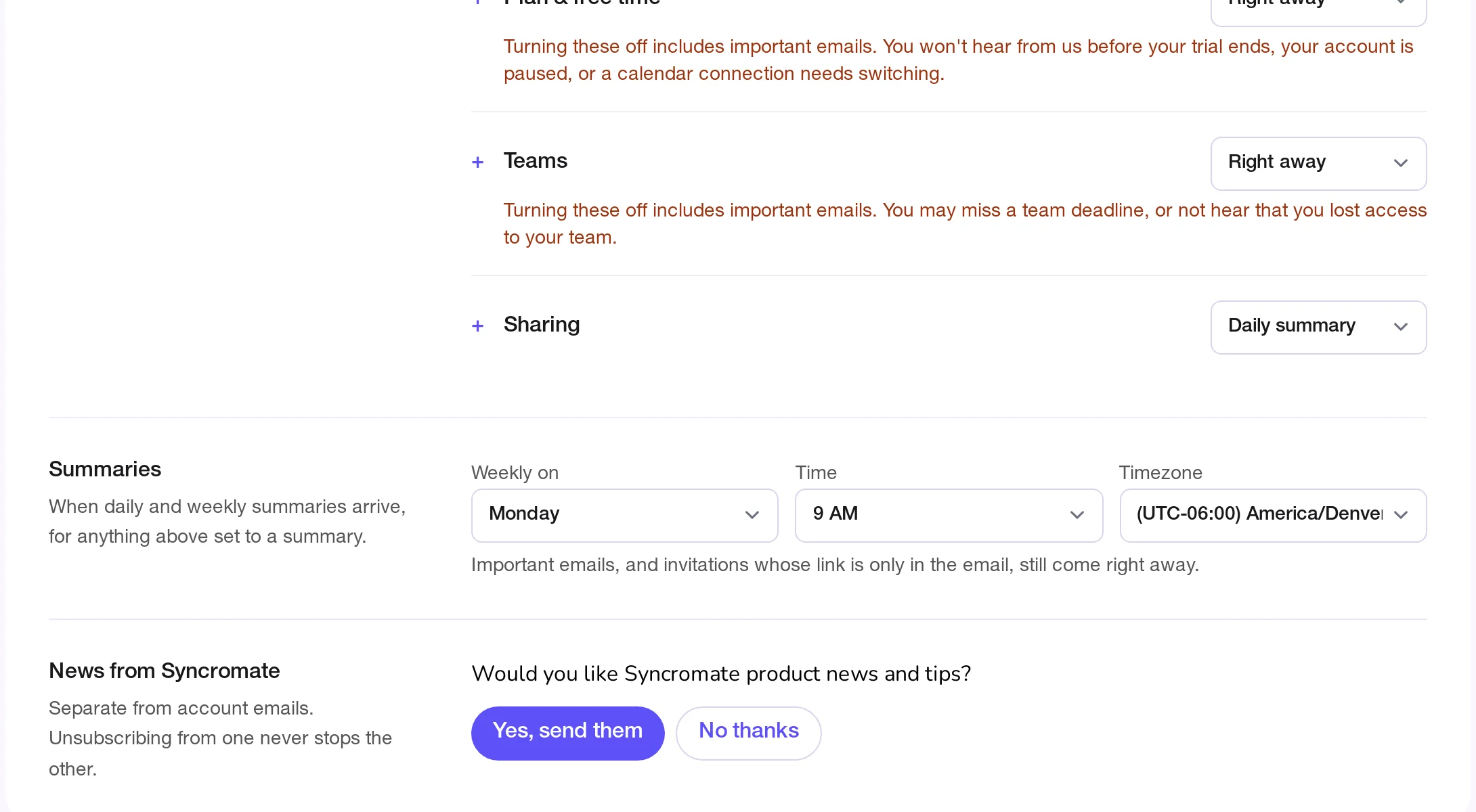
Under the groups, Summaries sets when they arrive. You can set it before you choose a summary; until you do, it says so and changes nothing.
- Weekly on: the day for weekly ones. Monday unless you change it.
- Time: when your summaries arrive. 9 AM unless you change it.
- Timezone: starts as your account's timezone and follows it if you change that, unless you pick a different one here.
Important emails, and invitations whose link is only in the email, always come right away, even when their group is in a summary. In the message center, a message waiting for your next summary says In your next summary.
To stop summaries, use Unsubscribe in your mail app on a summary email, or the link it opens. This turns those emails Off, not back to Right away, and messages already waiting for a summary are not sent; they stay in your message center. Important emails and invitations keep coming. To get them one by one instead, set them to Right away in Settings. Each group in a summary also has its own Change ... emails link, which works without signing in.
Slack and Microsoft Teams
Notices come by email and to your message center. If you'd like them posted to a Slack or Microsoft Teams channel instead, tell us.
Without signing in
Change your notification settings under an email opens a short page for that group, and it works without signing in. You can turn the group's emails off there, important ones too past a warning, and turn them back on. See all your notification settings on that page opens the tab (you sign in first if you aren't).
Many emails also carry an Unsubscribe button in your mail app. One press turns off that group's ordinary emails, such as receipts and "your free year has started", including any you had turned back on one by one. Important emails keep coming. To stop those too, use the short page or the tab, where the warning is beside them.
Emails that always come
Sign-in and security emails always come, and so do a few other emails you could not safely do without, such as a notice that your data is being deleted or that a renewal is coming. They cannot be turned off. In Settings → Email & notifications they are listed in gray, with the reason.
If you don't have an account
Some emails reach people without an account, such as someone you shared a calendar with. Those emails end with Stop emails from GetCalendario to this address. After you confirm, we stop emailing that address. A code you ask for yourself, such as a sign-in code for a shared calendar, still comes when you ask. You can undo it from the same page.