
How to hide event details but keep the time blocked
Updated 3 September 2026
Sometimes a destination calendar should show that you're busy without showing why. A sync filter set to redact keeps a matching event on the calendar as blocked time, while stripping out everything that would say what it actually is.
What this filter does
A matching event still syncs — it isn't dropped. What changes is what travels with it: the title, description and location are all removed, and the copy is marked private. Anyone looking at the destination calendar sees a blocked-out slot with no way to tell what it's for, but the time itself is accounted for exactly as it would be without the filter.
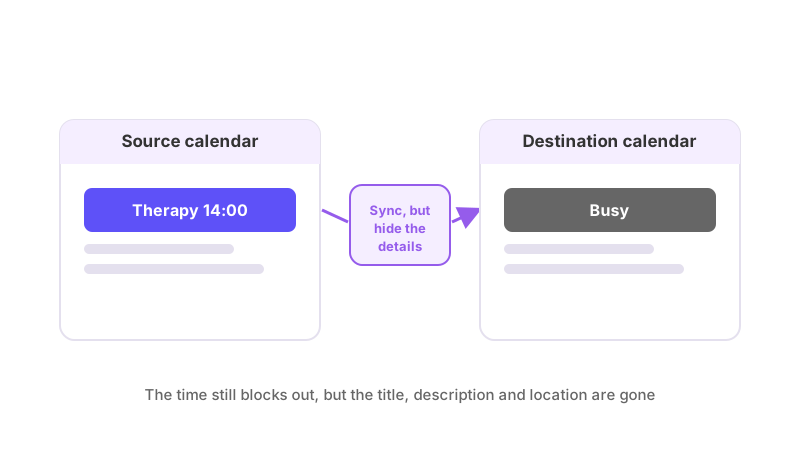
What a filter can match on
The filter matches on one of four things: an event's title, its description, its location, or its private/public status. You pick the field and the keyword — a filter on location matching "Clinic" would redact any event at that location, or a filter on visibility matching "private" would redact every event already marked private on the source calendar, whatever else is true about it.
Setting one up
Filters are set from the Sync Filters page for a connection. Choose the connection, pick "Sync, but hide the details" as the rule's action, choose the field to match on, and enter the keyword. As with any filter, you can apply the same rule to more than one connection when you create it, but each one then behaves independently.
A primary's rule belongs to one connection
If you're the primary account holder, a redact rule you set is pinned to the one connection you created it on. It doesn't reach any other connection, including a second one you've built running the other direction between the same two calendars — you'd set the same rule up again there if you wanted the same behaviour.
A secondary's rule covers every connection touching their calendar
If you're a secondary — your calendar is the destination for a connection someone else set up — your redact rules work differently. Rather than being pinned to a single connection, a secondary's rule applies to every connection that touches their calendar, including ones created after the rule was set. This is deliberate: a secondary doesn't own the connections writing to their calendar, so there's nothing for their rule to be pinned to, and it needs to keep applying even if the primary adds another connection later. A secondary can only redact — they can't stop an event syncing outright. See how to stop certain events from syncing for that filter and why it's restricted to primaries.
What this doesn't do
Redacting an event only affects what the destination calendar shows; it never changes anything on the source calendar. It also only reaches events inside your plan's sync window, so an event currently outside that range keeps whatever state it already has — see how far back and forward does calendar sync go for the details.
Adding or removing the matching keyword doesn't just change how future events behave. It reaches back over events already synced within the window, within seconds of you saving the change — and it's reversible, so removing the keyword restores the stripped details. What happens when I add or delete a filter keyword has the full mechanics, including what happens if the connection is paused at the time.