
Working across several Microsoft 365 tenants
Updated 3 September 2026
Each client puts you on their own Microsoft 365 tenant — a separate account, a separate mailbox, a separate calendar, sometimes with a login you only use for that one client. You end up with three or four Outlook calendars that have nothing to do with each other, and no single view of what any of them actually add up to.
GetCalendario treats each Microsoft 365 tenant account the same way it treats any other calendar account: as something you authenticate and connect on its own. There's no bulk "connect all my Microsoft tenants" step, because each one is a genuinely separate account as far as Microsoft and GetCalendario are concerned — but connecting several of them into one place works the same way as connecting any other set of calendars.
The setup
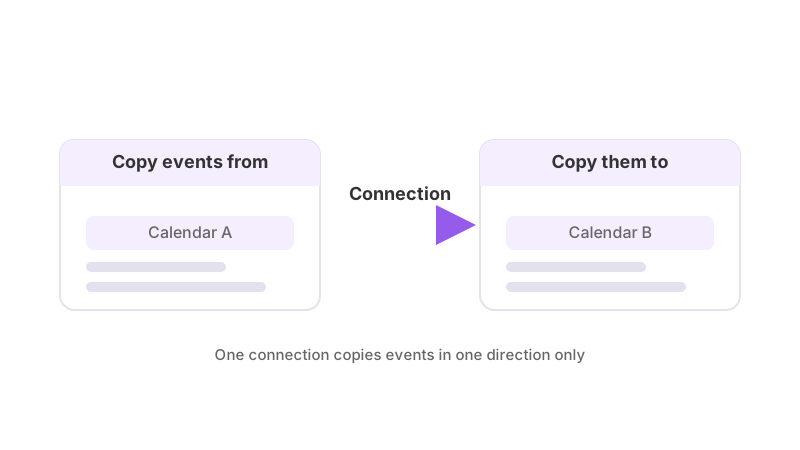
Authenticate each Microsoft 365 tenant account separately — each one goes through its own sign-in, since each tenant is its own account rather than a sub-account of anything else. Once each is connected, build a one-way connection from each tenant's calendar into your personal calendar:
- Client A's Microsoft 365 calendar → your personal calendar
- Client B's Microsoft 365 calendar → your personal calendar
- Client C's Microsoft 365 calendar → your personal calendar — this one might be Outlook.com or Exchange Online rather than Microsoft 365 itself; the connection works the same way regardless of which Microsoft product the calendar sits on.
Each connection is configured on its own — its own detail level, its own filters, its own pause switch. Nothing about connecting one tenant's calendar affects how another tenant's calendar is connected, and there's no setting that applies across "all your Microsoft accounts" at once.
Detail level, tenant by tenant
Because each client's tenant is a separate account with its own policies, it's worth deciding detail level per connection rather than assuming the same setting suits all of them. One client might be fine with full event details flowing to your personal calendar; another might expect only a placeholder — a blocked slot with no title, description or location. Both are set on the individual connection from that tenant, and one client's setting has no bearing on another's.
If you want your personal calendar's general availability reflected back into a given tenant — so that client's calendar shows you as busy during your other commitments — that's a second, separate connection running the other way for that tenant specifically: your personal calendar → Client A's Microsoft 365 calendar. It doesn't get created automatically alongside the first one, and you'd need to decide whether to set it up for every tenant or just some.
Keeping tenants from leaking into each other
A filter set on the Client A connection only affects what comes from Client A's tenant — it has no effect on Client B's or C's, even though all three are writing into the same personal calendar. If Client A's tenant has an internal policy that certain events (say, anything marked private) must never leave their environment, a "Don't Sync" filter on that one connection handles it without touching the others.
Since you're the one authenticating each tenant account and setting up its connection into your personal calendar, you're the primary account holder on all of them — which means a "Don't Sync" or redact rule you add on one tenant's connection is pinned to that connection alone, the same as any primary's rule. It won't reach a different tenant's connection, even though both feed the same personal calendar. If you want the same rule applied to every tenant, you add it on each connection individually. See how to stop certain events from syncing and how to hide event details but keep the time blocked for how those two filters work.
What your personal calendar shows
Once all the tenant connections are running, your personal calendar shows a merged view of commitments across every client, each at the detail level and filtering that connection was set to. A meeting booked on Client B's tenant this week shows up on your personal calendar within the normal sync cycle, giving you a single place to check for conflicts before agreeing to anything else.
All of this is bounded by the plan's sync window — a number of days back and forward, set by the plan. A meeting booked far enough ahead to sit outside that window doesn't appear until it moves inside it. Cancellations and reschedules sync the same way as new events, and silently: nobody is notified, since attendees are never copied onto a synced event.
If it looks wrong
If one tenant's events aren't reaching your personal calendar, check that specific connection — with several tenants involved, one connection can fail Test Flight, get paused, or hit a filter while the others keep working. Why is my calendar not syncing covers the checks in order. If a recent booking is missing, confirm it falls inside the sync window; see how far back and forward does calendar sync go. And remember that re-authenticating one tenant's account, if its login expires, only affects that tenant's connections — it doesn't touch the others.